Workspaces
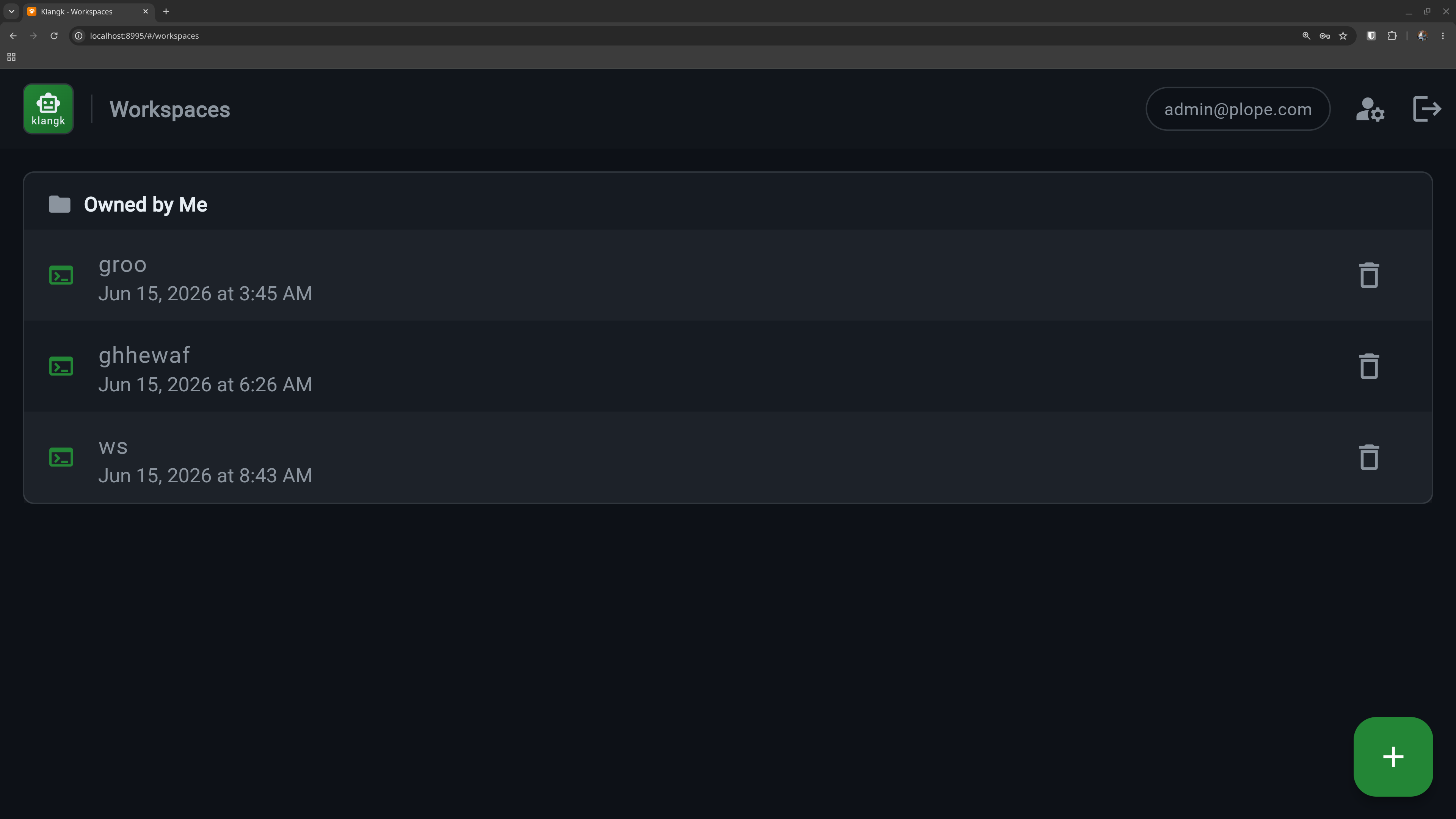
A workspace is an isolated coding environment — its own container with a terminal, file browser, and chat. Each user can create multiple workspaces for different projects.
Creating a workspace
Click the + button on the Workspaces page. Give it a name and optionally configure:
- Image — the container image to use (defaults to
klangk-workspace) - Service command — a command to run when you open the terminal
(e.g.,
pito start the AI agent automatically). If unset, the terminal starts a tmux session with a login shell. See Service Command. - Auto-start — start the container automatically when the Klangk server starts. Useful for service workspaces that should be running before any user connects. If the workspace also has a service command, it will already be running when you connect.
- Health check — a shell command Klangk polls inside the container to verify the service is actually healthy (exit 0 = healthy). See Health Check.
- Bind mounts — mount host directories into the container.
If
KLANGK_ALLOWED_MOUNT_ROOTSis set (comma-separated list of paths), only directories under those roots can be bind-mounted. Protected paths like the Docker/Podman socket are always blocked. - Environment variables — set custom env vars for the container
You can change all of these later from the workspace Settings tab.
Auto-start
Workspaces with auto-start enabled start their containers automatically when the Klangk server starts. This is useful for service workspaces where a long-running process (configured via Service Command) should be available immediately — without waiting for a user to connect.
Auto-start requires the server to have KLANGK_ALLOW_AUTOSTART
set to 1/true/yes. When disabled (the default), the
auto-start option is hidden in the UI, CLI, and API.
Toggle auto-start from the workspace Settings tab, or via the CLI:
When the server starts, it starts containers for all auto-start workspaces. If the workspace has a service command, the command is already running by the time any user connects.
What's inside a workspace
Each workspace runs in its own container with:
- A persistent home directory at
/home/<handle>/(survives container restarts) - A shared
work/directory for project files - Pre-installed tools and AI agents (see Container Packages and AI Coding Harnesses)
Your dotfiles (.bashrc, .gitconfig, etc.), bash history, and Pi
sessions all persist across container restarts.
Sharing workspaces
Workspace owners can share access with other users or groups from the Sharing tab, or from the CLI:
klangkc share my-project user@example.com                # share (coder role)
klangkc share my-project user@example.com --role=owner   # share with role
klangkc unshare my-project user@example.com              # remove access
klangkc members my-project                               # list members
Shared users connect to the same container and see the workspace in a "Shared with Me" section on their workspace list.
Each shared user gets a role that controls what they can do — see Authorization for details.
Shared member avatars appear on workspace cards so you can see who has access at a glance.
Mount security
Workspace bind mounts are validated at create and edit time. Two
protections apply regardless of KLANGK_ALLOWED_MOUNT_ROOTS:
Protected paths — the following host paths are always blocked, even if they fall under an allowed root:
/var/run/docker.sock,/run/docker.sock,/run/podman/podman.sock— mounting a container engine socket grants full host controlKLANGK_DATA_DIR(and anything beneath it) — contains every user's workspace home and the database
Volume isolation — named volumes (e.g., nix-store:/nix) are
labelled with klangk.instance and klangk.user-id at creation
time. A workspace cannot mount a volume created by a different
klangk instance or a different user. This prevents both
cross-tenant and cross-user data access on shared hosts.
Idle timeout
Containers stop automatically after 30 minutes of inactivity
(configurable via KLANGK_IDLE_TIMEOUT_SECONDS). Activity includes
terminal input, file operations, and AI agent events — so containers
stay alive during long-running LLM requests as long as events are
flowing.
When a container stops, the terminal shows an overlay with a restart button. Your files and home directory are preserved.
The idle timeout is the only thing that automatically stops a container. Logging out does not — your containers (and any service-command processes, like an auto-started gateway) keep running after you log out, so they're immediately available when you or a collaborator reconnect. Only the idle timeout (or an explicit, admin-gated Shutdown container command) tears a container down. This lets long-lived services outlive any single user's session (#301, #1235).
Export and import
Workspaces can be exported as archives and imported to create new ones. See Export & Import.