GitHub HTTPS Authentication
Klangk workspaces can authenticate with GitHub for HTTPS git operations (push, pull, clone of private repos). Two methods are available:
- Sign in with GitHub (recommended) — OAuth device flow, no token management required. Requires admin configuration.
- Personal access token (PAT) — manual token entry, always available as a fallback.
When git needs credentials, a dialog appears in your browser tab — no need to paste tokens into the terminal.
Setup
The git-credential plugin must be included in your plugins list. If
you're using the default plugin set, it's already there. Otherwise, add
it to your plugins.yaml:
plugins:
  - name: git-credential
    git: https://github.com/mcdonc/klangk.git
    path: plugins/git-credential
    ref: main
Then run update-plugins to fetch the plugin, then rebuild the workspace
image (e.g. devenv up, which rebuilds automatically).
Sign in with GitHub (recommended)
When the admin has configured GitHub OAuth (see
Admin setup below), running
a git command that requires authentication for github.com triggers
the device flow automatically.
How it works
- Run a git command that requires authentication:
- A popup window opens at GitHub's device authorization page. A dialog in the Klangk tab shows the code with a copy button and a spinner while waiting for authorization.
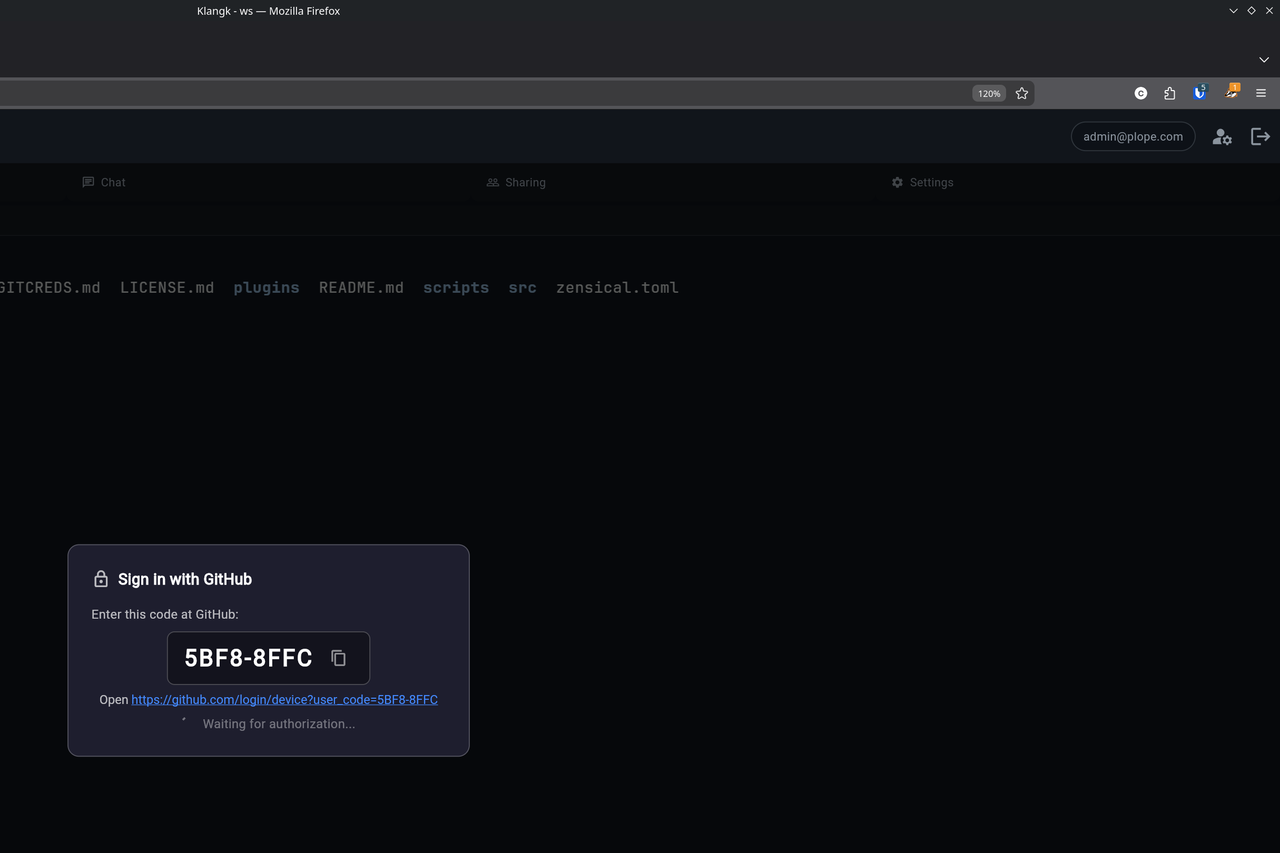
- Copy the code from the dialog (click the copy icon), paste it into the GitHub page, and authorize the app. The credential helper detects authorization automatically — the dialog dismisses and git proceeds.
The entire device flow runs inside the workspace container. The
container-side credential helper (git-credential-klangk) talks to
GitHub directly, and only sends the display code to the browser for the
user to see. The access token never leaves the container — it goes
straight from GitHub to git via the helper's stdout.
If the device flow fails (network error, expired code, denied), the helper falls back to the PAT dialog automatically.
Scopes
The device flow requests the repo scope, which grants read/write
access to repositories you can access on GitHub. The token is scoped to
the OAuth App — it cannot access organization resources unless the
organization has approved the app.
When does the device flow activate?
The device flow only activates when all of these are true:
KLANGK_GITHUB_OAUTH_CLIENT_IDis set in the container environment- The git host is
github.com(orwww.github.com) - A browser tab is connected (the helper needs to show the code)
For non-GitHub hosts, or when the client ID is not configured, the helper falls through to the PAT dialog.
Using a personal access token
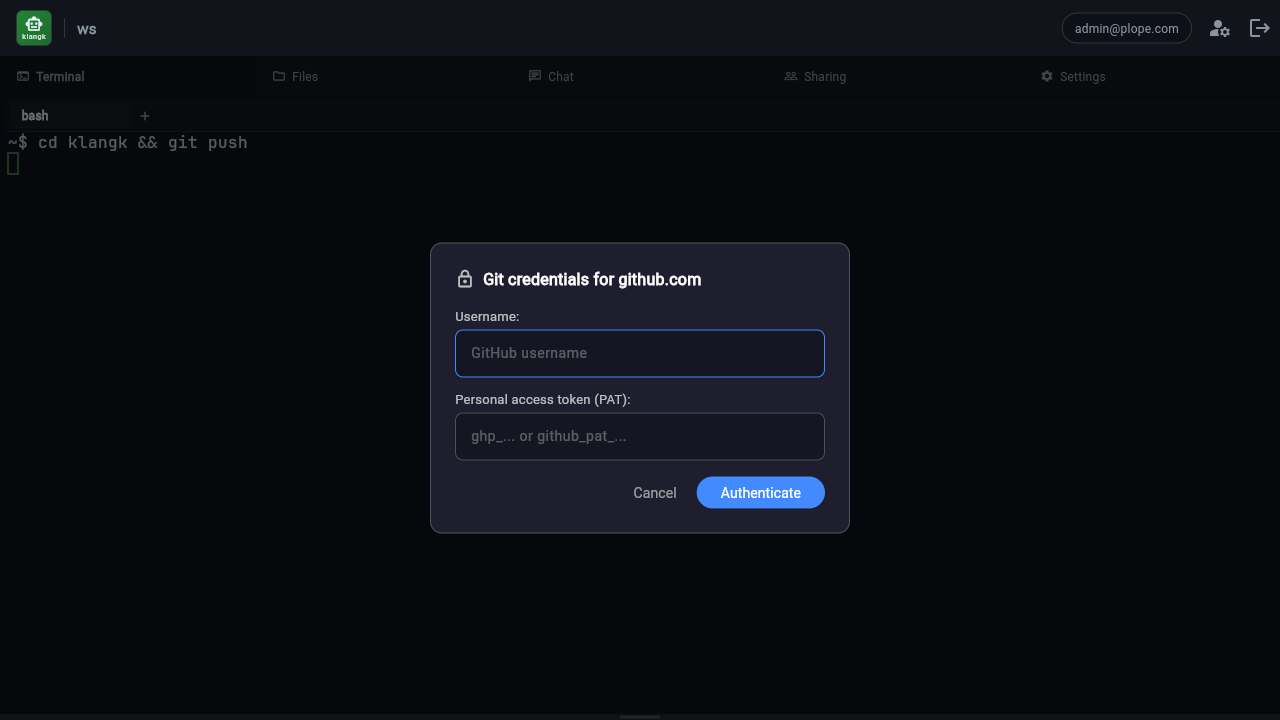
If GitHub OAuth is not configured, or for non-GitHub hosts, the credential dialog shows username and PAT fields:
Generating a GitHub PAT
The credential helper needs a fine-grained personal access token with repository access. To create one:
- Go to https://github.com/settings/tokens?type=beta (or navigate to Settings > Developer settings > Personal access tokens > Fine-grained tokens).
- Click Generate new token.
- Give it a descriptive name (e.g. "Klangk workspace").
- Set an expiration. GitHub allows up to 1 year.
- Under Repository access, choose either:
- All repositories — if you want to push/pull from any repo.
- Only select repositories — pick the specific repos you need.
- Under Permissions > Repository permissions, grant:
- Contents: Read and write (required for push/pull).
- Metadata: Read-only (required by GitHub for all fine-grained tokens).
- Click Generate token.
- Copy the token immediately — GitHub will not show it again.
The token starts with github_pat_ (fine-grained) or ghp_ (classic).
Both formats work. Classic tokens also work but fine-grained tokens are
recommended because they can be scoped to specific repositories.
Using the PAT
- Open a workspace and run a git command that requires authentication.
- Enter your GitHub username and paste the PAT.
- Click Authenticate.
On subsequent git operations to the same host, the cached credentials are reused automatically — no dialog appears. The cache lasts until you refresh the page or close the tab.
Admin setup: creating a GitHub OAuth App
To enable "Sign in with GitHub" for your Klangk instance, you need to create a GitHub OAuth App and set one environment variable.
- Go to GitHub > Settings > Developer settings > OAuth Apps.
- Click New OAuth App (or Register a new application).
- Fill in the form:
- Application name: e.g. "Klangk — My Instance"
- Homepage URL: your Klangk instance URL (e.g.
https://klangk.example.com) - Authorization callback URL: use your instance URL (e.g.
https://klangk.example.com). The device flow does not use redirects, but GitHub requires this field. - Check Enable Device Flow on the registration form.
- Click Register application.
- Copy the Client ID (you do not need the client secret — the device flow is designed for public clients).
- Set the environment variable in your deployment:
- Rebuild the workspace image so the variable is injected into
containers. The device flow will activate automatically for
github.comhosts.
Important: this must be an OAuth App, not a GitHub App. The device authorization grant is only available on OAuth Apps.
If KLANGK_GITHUB_OAUTH_CLIENT_ID is not set, the device flow is
disabled and the PAT dialog is used for all hosts.
Credential cache
The PAT cache is per-tab and in-memory only:
- Each browser tab has its own
GitCredentialPlugininstance with its own cache. Credentials entered in tab A are not available in tab B. - Refreshing the page clears the cache (new plugin instance).
- Closing the tab clears the cache.
- The cache is keyed by
protocol://host(e.g.https://github.com).
Device flow tokens are not cached in the browser — the token goes
directly from the container helper to git. However, after a successful
git push, git calls the helper's store operation, which caches the
credentials in the browser for subsequent operations within the same
session.
Multiple browser tabs
If you have two browser tabs open on the same workspace, the credential dialog appears in whichever tab you most recently clicked into. Both tabs share the same terminal session, but each maintains its own credential cache. Switching tabs and running git will prompt for credentials again if that tab's cache is empty.
SSH alternative
If you prefer SSH authentication over HTTPS, you can configure your git
remotes to use SSH URLs (git@github.com:...) instead. The credential
helper only activates for HTTPS URLs.
Note that there is currently no way to keep your GitHub private key secure in a Klangk instance — any SSH key placed in the container is accessible to anyone with access to the workspace. For this reason, HTTPS with PATs or OAuth is the recommended authentication method.
Troubleshooting
Dialog doesn't appear
- Make sure the
git-credentialplugin is installed (rungit config --system credential.helperin the container — it should printklangk). - Verify the browser tab has a WebSocket connection (check for errors in the browser console).
Device flow not activating
- Verify
KLANGK_GITHUB_OAUTH_CLIENT_IDis set in the container environment (check withecho $KLANGK_GITHUB_OAUTH_CLIENT_IDin the workspace terminal). - Check that the OAuth App has Enable Device Flow turned on.
- The device flow only activates for
github.comhosts. - Rebuild the workspace image after setting the variable.
Device flow code expired
The code is valid for 15 minutes. If it expires before you authorize, the helper falls back to the PAT dialog. Run the git command again to get a new code.
Credentials rejected
- Verify your PAT hasn't expired.
- Check that the token has Contents: Read and write permission.
- For fine-grained tokens, verify the target repository is included.
- Try generating a new token.
Debug output
Run with debug logging to see the credential helper's activity:
This prints the browser ID, the bridge request/response, device flow status, and any errors to stderr.