Invitations
Admins can invite new users by email. The invited user receives a link to create their account with a password — no self-registration required.
Sending an Invitation
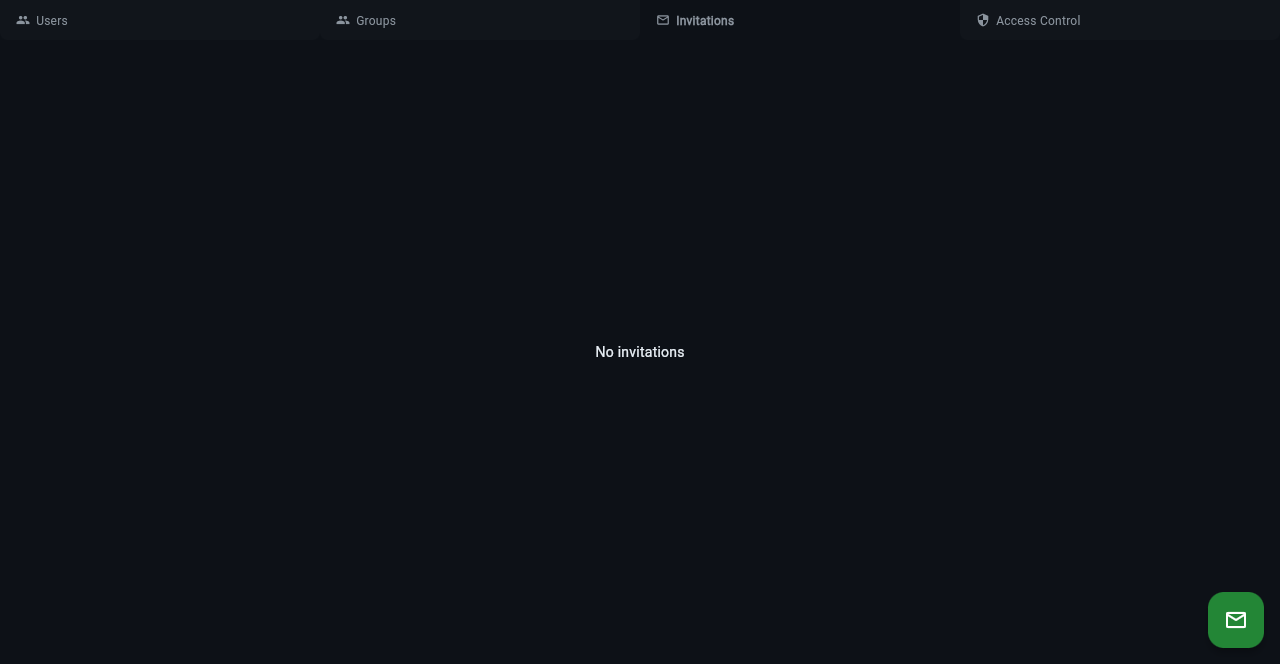
From the admin panel (Admin > Invitations tab), click the + button and enter the email address. The system sends an invitation email with a secure link that expires after 72 hours.
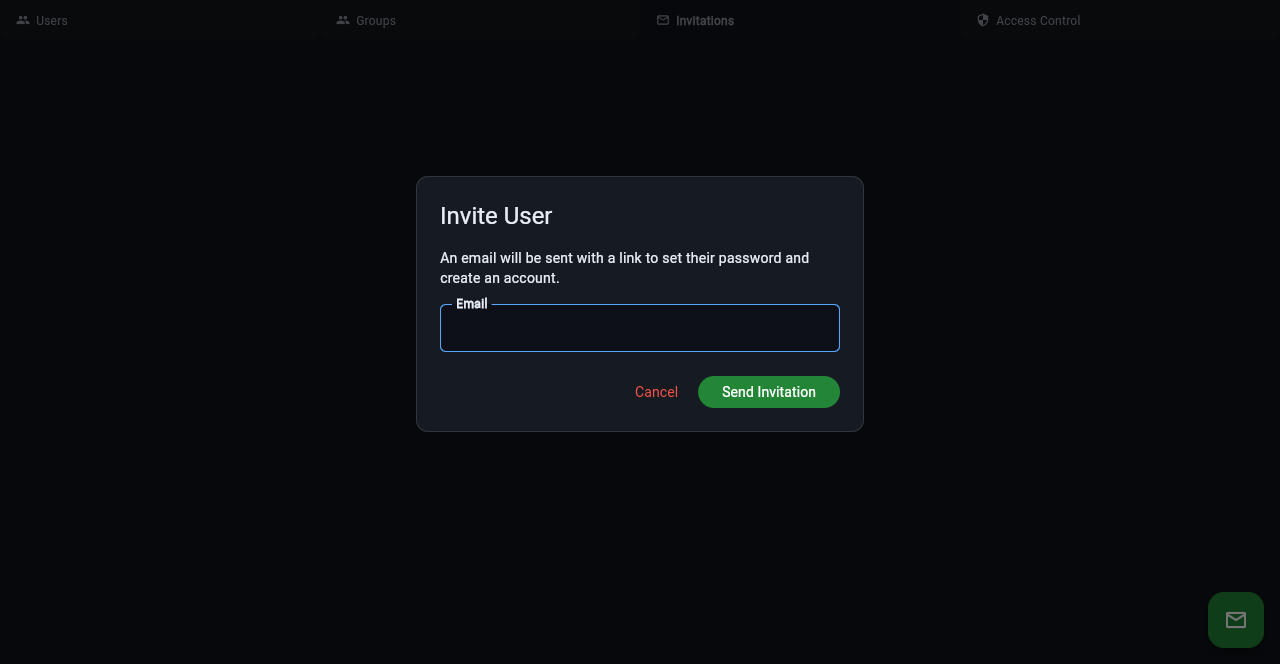
You can also invite users from the CLI:
Invitation States
- Pending — invitation sent, waiting for user to accept
- Accepted — user clicked the link and created their account
- Revoked — admin cancelled the invitation before it was accepted
Managing Invitations
The Invitations tab shows all invitations with their status, the admin who sent them, and the date.
- Resend — click the pencil icon to resend the invitation email
- Revoke — click the trash icon to cancel a pending invitation
Accepting an Invitation
The invited user clicks the link in the email, which opens a page where they set their password. After accepting, they're automatically logged in and can start using workspaces.
Configuration
| Variable | Default | Description |
|---|---|---|
KLANGK_DISABLE_INVITES |
(unset) | Set to 1 to disable invitations |
KLANGK_INVITE_EXPIRE_HOURS |
72 |
How long invitation links remain valid |