Auto-Start
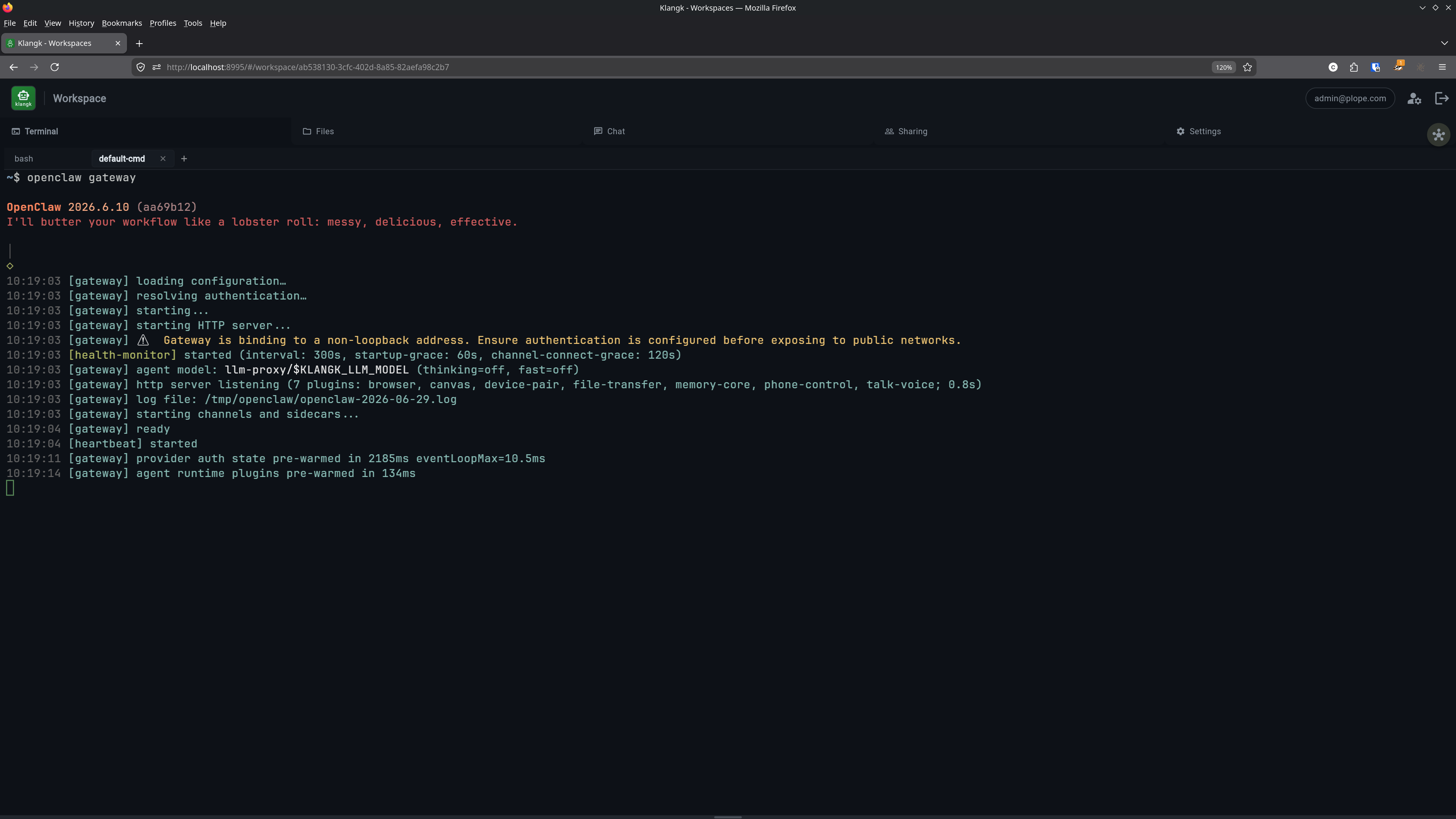
Workspaces can be configured to start their containers automatically when the Klangk server starts. This is primarily useful for service workspaces — workspaces that run a long-lived process via Service Command and should be available immediately, without waiting for a user to connect.
Enabling auto-start on the server
Auto-start is disabled by default. To allow workspaces to use it,
set the KLANGK_ALLOW_AUTOSTART environment variable:
When this is not set, the auto-start option is hidden in the web UI, CLI, and API. Existing workspaces with auto-start enabled will not start on boot.
Configuring a workspace for auto-start
Web UI
Enable auto-start from the workspace Settings tab.
CLI
# Enable during creation
klangkc create my-service --auto-start

# Enable on an existing workspace
klangkc edit my-service --auto-start

# Disable
klangkc edit my-service --no-auto-start
Sandbox config
In .klangk-sandbox.yaml:
How it works
When the Klangk server starts, after initializing the database and
cleaning up orphaned containers, it queries all workspaces with
auto-start enabled and starts their containers. If a workspace also
has a service command, the command runs in the
workspace's service-cmd terminal window — so the service is already
running by the time any user connects. Auto-started containers are
pinned alive (they do not idle out between connections).
Users connect later with klangkc shell and see the service output in
the service-cmd tab. They can open another tab for a shell alongside
the running service.
Typical setup
A service workspace usually combines auto-start with a default command, and often a health check to confirm the service is actually serving:
workspace:
  service-command: openclaw gateway
  auto-start: true
health-check: curl -sf http://localhost:8080/health
This gives you:
- Server starts → container starts →
openclaw gatewayruns - Health check confirms the gateway is responding — see Health Check
- User runs
klangkc shell my-service→ sees gateway output - User runs
klangkc shell my-service shell→ gets a bash prompt in a separate tmux window - Ctrl+C in the gateway window stops it; up-arrow + Enter restarts