Terminal
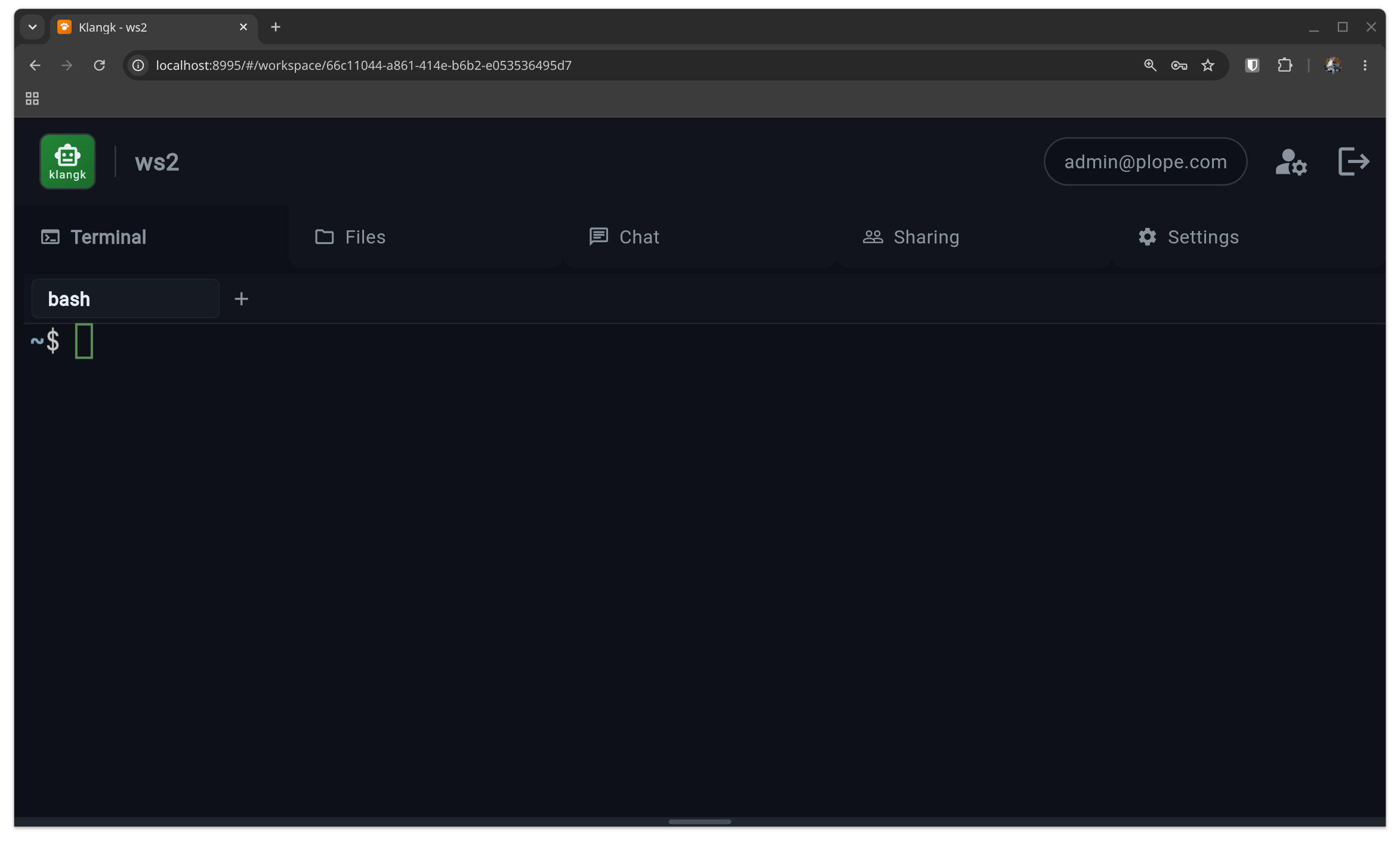
Klangk terminals give you shell access to a Linux container. Each workspace runs its own isolated Linux environment — when you open a terminal, you get a bash shell running on Linux regardless of whether your local machine is Linux, macOS, or Windows.
Under the hood, every terminal runs inside tmux, a terminal multiplexer. You never interact with tmux directly — Klangk's web UI and CLI manage everything for you — but understanding the basics helps explain how terminal features work.
Why tmux?
Klangk uses tmux for three reasons:
- Session persistence — your terminal survives disconnects and page refreshes. When you reconnect, you pick up exactly where you left off.
- Window management — each terminal tab is a tmux window. Switching tabs is instant because all windows share the same tmux session.
- Shared terminals — tmux session groups let multiple users see the same terminal in real time. One user's session group can have spectators or collaborators attached.
Tmux runs with no status bar, no prefix key, and no keybindings beyond scrollback — it looks and feels like a plain terminal.
How it maps to what you see
| Klangk concept | tmux concept |
|---|---|
| Terminal tab | tmux window |
| Your set of tabs | tmux session (named by your user ID) |
| Joining a shared terminal | New tmux session in the owner's session group |
| Tab name | tmux window name (persists, visible to other users) |
| Shell exit + respawn | remain-on-exit + pane-died hook respawns the shell |
Using the terminal
The terminal panel gives you direct shell access to the workspace container. It starts on demand when you click the Terminal tab.
- Runs as the
klangkuser with bash (see The Shell for zsh and customization) - Select to copy — selecting text with the mouse automatically copies it to your system clipboard. This is a tmux feature: the selection is a tmux copy-mode selection (not a native browser selection), so it can span the full scrollback buffer, not just the visible viewport. To make a native browser selection instead (e.g., for copying a URL), hold Shift while dragging.
- Right-click context menu with Paste (and Copy when text is selected)
- Mouse wheel scrollback via tmux copy mode
- If the container stops (idle timeout or crash), an overlay appears with a restart button. The terminal auto-reconnects after restart.
Exiting a klangkc shell session
Typing exit or pressing Ctrl+D does not disconnect you from
the container. Klangk's tmux is configured with remain-on-exit, which
keeps the pane alive and immediately respawns a new shell. This is
intentional — it prevents you from accidentally losing your terminal
session.
To actually disconnect from a klangkc shell session, use the SSH-style
escape sequence: press Enter, then ~, then . (period). This
cleanly disconnects the CLI client without affecting the tmux session
inside the container.
Terminal tabs
Each user has their own set of terminal tabs. Tabs map 1:1 to tmux windows inside the container. All tabs share a single tmux session named by your user ID, so switching tabs is instant.
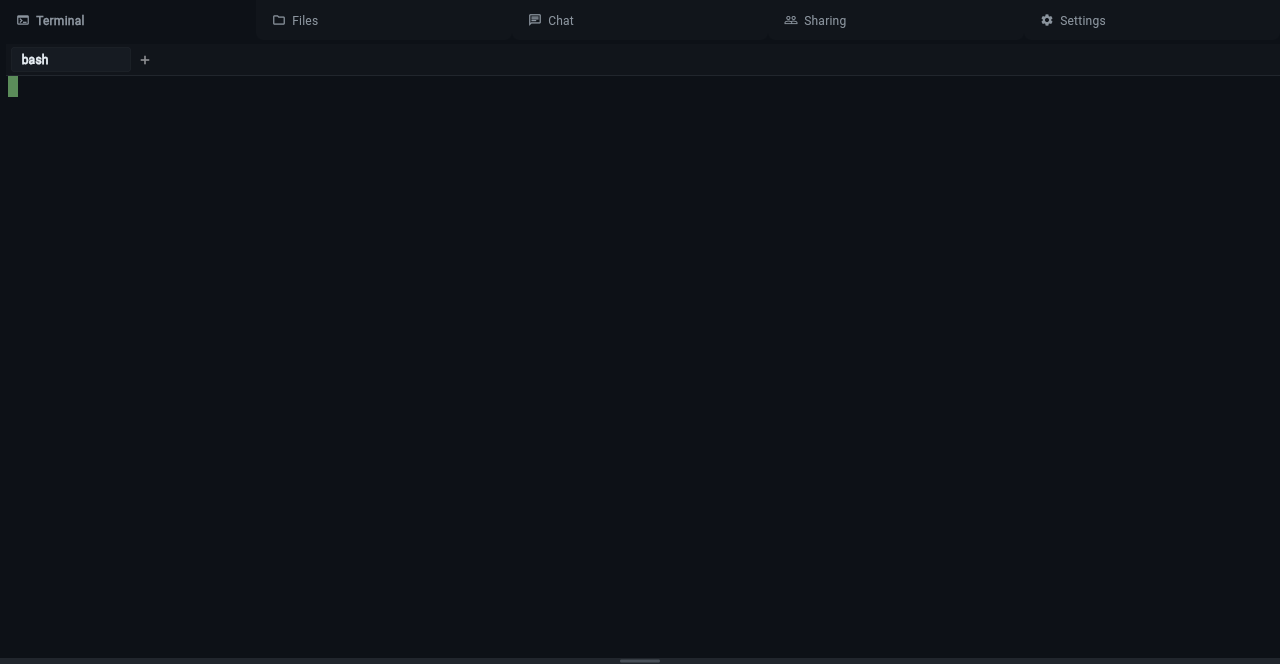
- Click + to create a new terminal tab (tmux window)
- Click a tab to switch to it
- Click ✕ on a tab to close it (only shown when more than one tab exists)
- Right-click a tab to open a context menu with Rename and Share/Unshare
Renaming tabs
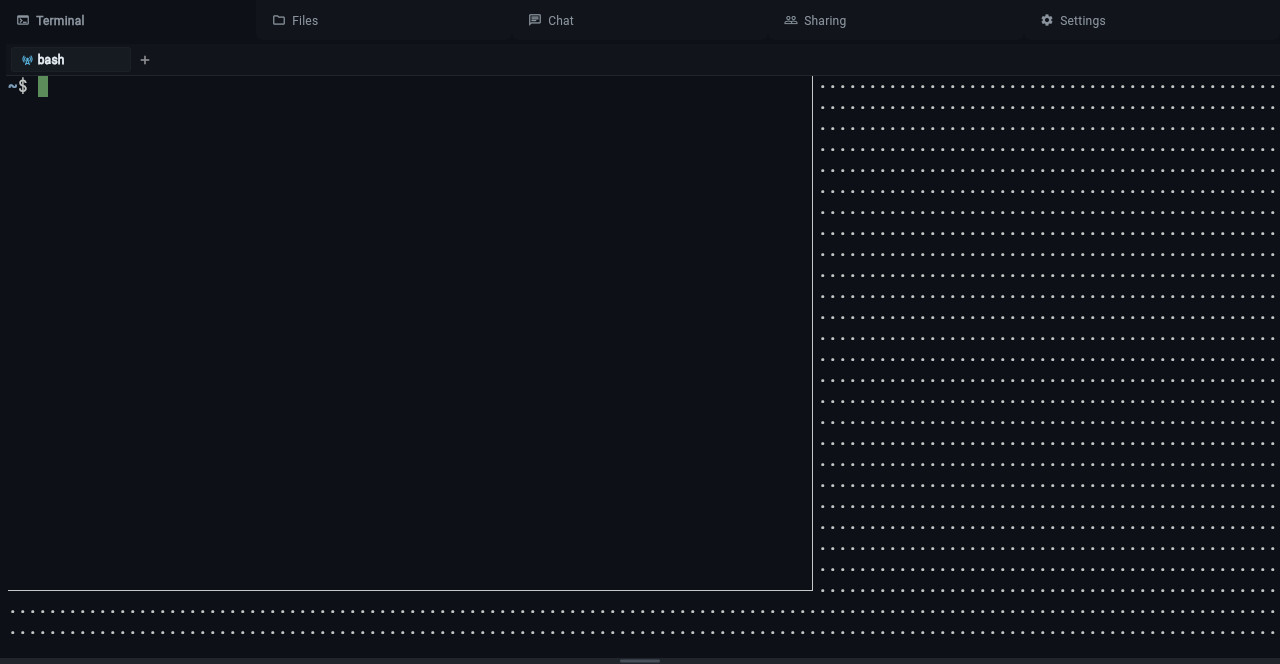
Right-click any tab and select Rename to change its display name. The name is stored as the tmux window name, so it persists across reconnections and is visible to other users if the tab is shared.
Shared terminals
Any terminal tab can be promoted to a shared terminal, making it visible and joinable by other workspace members. Sharing is per-tab — you can share one tab while keeping others private.
Under the hood, when a user joins a shared terminal, Klangk creates a new tmux session in the same session group as the owner's session. Session groups share the same set of windows, so all participants see the same content in real time. Each joiner gets an independent tmux session (separate scroll position, active window selection) but shares the underlying window panes.
Sharing a tab
Right-click a tab and select Share. The tab gains a broadcast icon indicating it is now shared. Other workspace members see the shared tab appear in their tab bar.
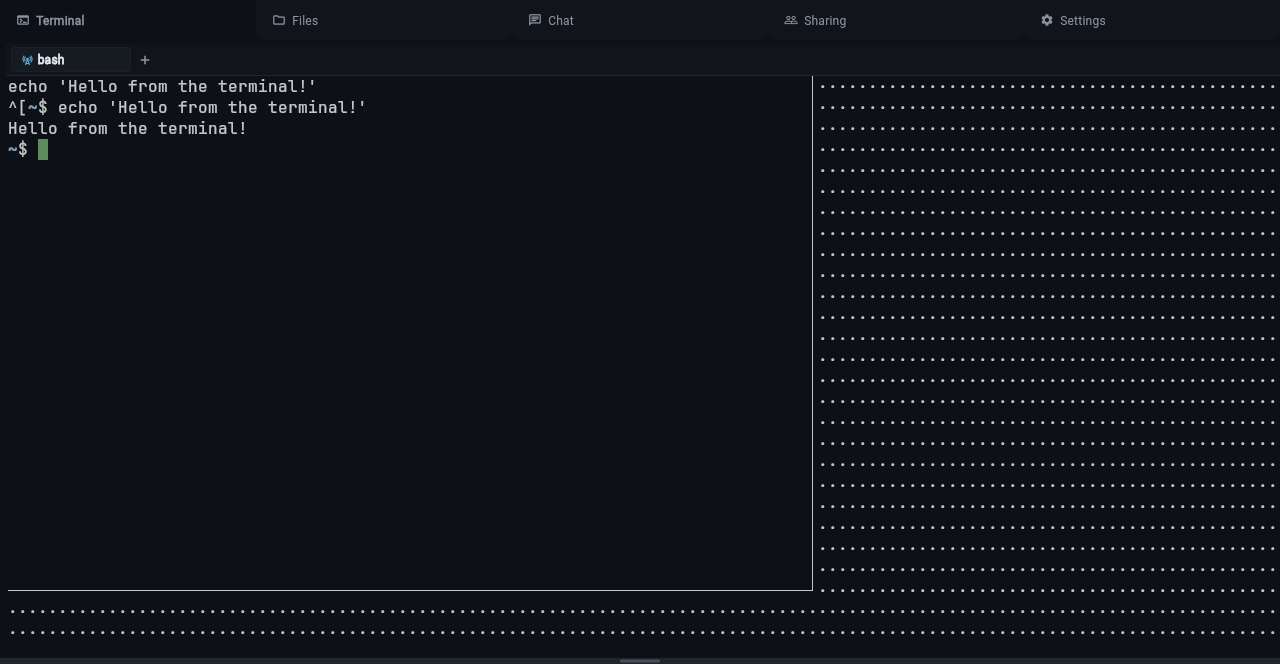
To unshare, either:
- Right-click the tab and select Unshare, or
- Click the broadcast icon directly
Joining a shared terminal
Shared terminals from other users appear in your tab bar with a prefix
showing the owner's handle (e.g., alice:build). Click the tab to join —
you are now seeing the same terminal session as the owner.
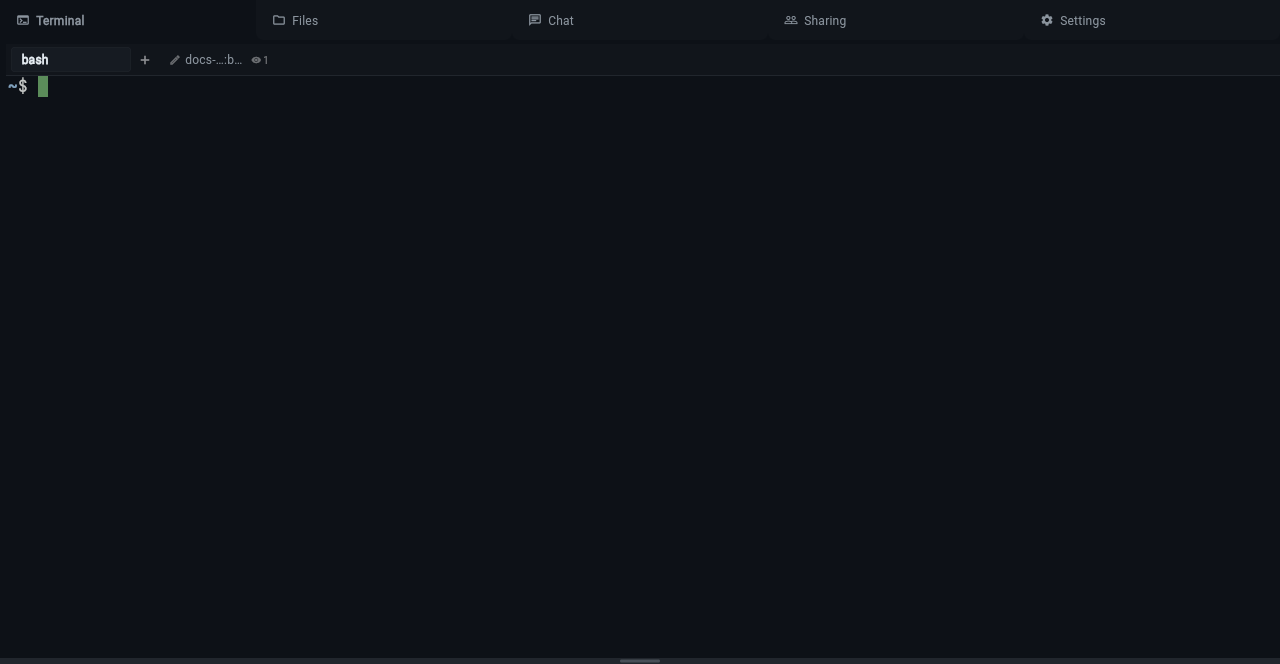
Depending on your role, you may be able to type (read-write) or only watch (read-only). A lock icon indicates read-only access.
Viewer tracking
When someone joins your shared terminal, an eye icon with a count appears on the tab showing how many users are currently viewing.
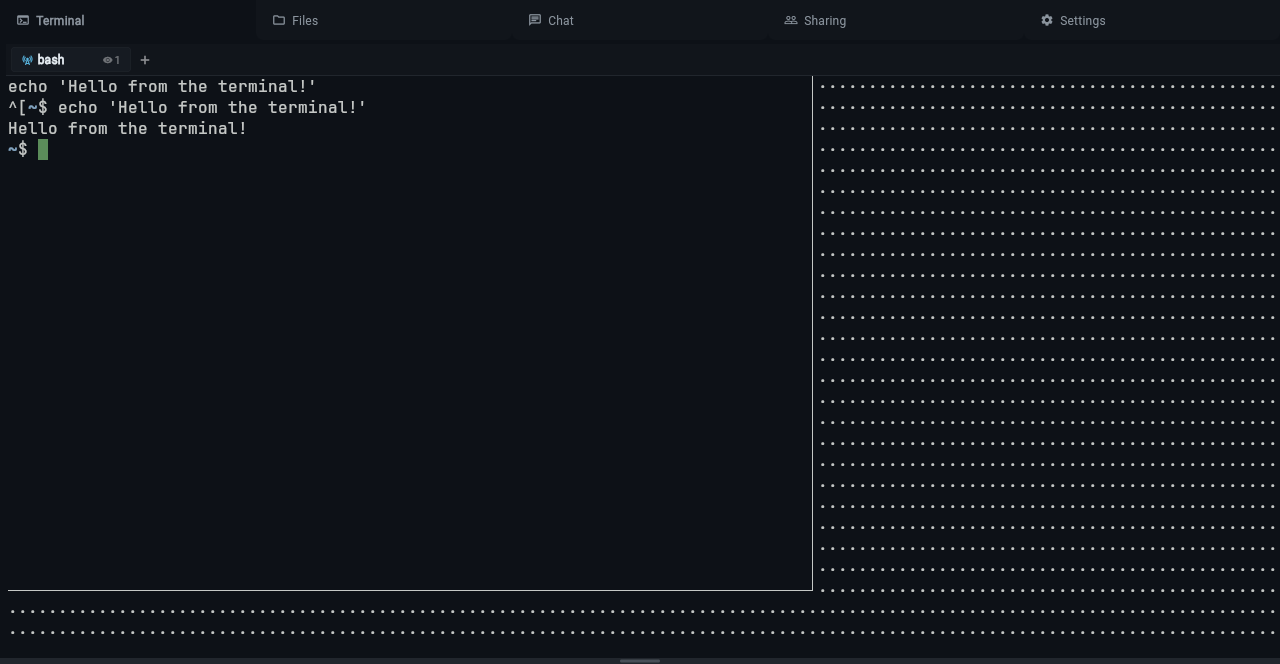
Hover over the tab to see a tooltip listing the full tab name and the handles of all current viewers.
Role permissions
| Permission | Owners | Coders | Collaborators | Spectators |
|---|---|---|---|---|
terminal |
* | yes | yes | yes |
code-in-isolation |
* | yes | yes | |
share-terminals |
* | |||
code-in-shared-terminals |
* | yes | ||
spectate-on-shared-terminals |
* | yes | yes | yes |
files |
* | yes | yes | |
chat |
* | yes | yes |
* Owners have the wildcard (*) permission which implies all permissions.
- Owners can share/unshare tabs, type in shared terminals, and rename tabs.
- Coders can watch shared terminals (read-only) but cannot share their own tabs or type in others' shared terminals. They have full isolated terminal and file access.
- Collaborators can type in shared terminals but cannot share their own tabs. They have full isolated terminal and file access.
- Spectators can watch shared terminals in read-only mode. They cannot start isolated terminals, access files, or send chat (chat is a privileged channel -- it can drive the agent via @mention).