Files
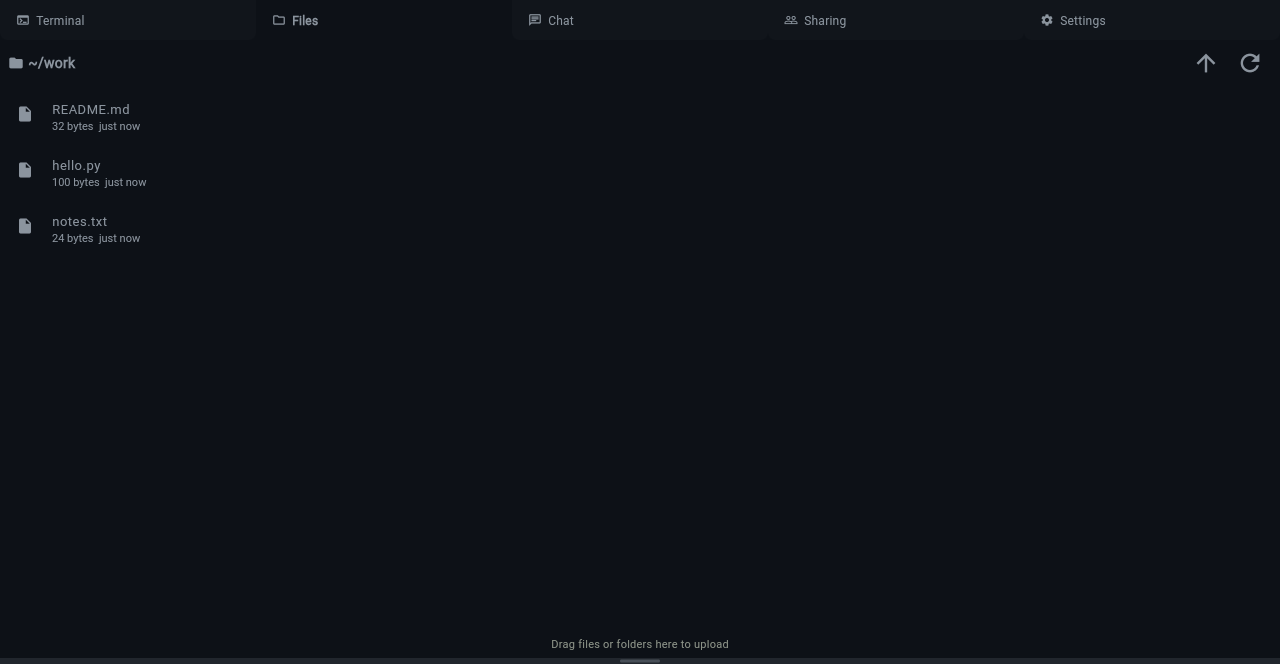
The Files tab provides a file browser for your workspace container. Browse directories, view file contents, and upload or download files — all without using the terminal.
Click the Files tab in the workspace to open.
Browsing
The file browser starts at /home/work but can navigate the entire
container filesystem. Click a directory to enter it, or click a file
to preview its contents.
- Path bar at the top shows the current absolute path with clickable breadcrumbs. Click any segment to navigate to that directory, or use the up-arrow button to go up one level.
- Home button (house icon) returns to
/home/work. - Navigate to root — click the leading
/in the breadcrumbs or use the up-arrow repeatedly to reach/. From there you can browse shared bind-mounted directories (e.g./mnt/data), system directories, or any other part of the container filesystem. - File sizes are shown next to each entry.
- Auto-refresh — the file list refreshes automatically when Pi creates, edits, or deletes files, and when you switch to the Files tab.
Note
The file browser requires a running container. If the container is stopped (e.g. due to idle timeout), start it by switching to the Terminal tab first.
Uploading Files
Drag and drop files or folders onto the file browser to upload them. Uploads go into the currently viewed directory (not always root).
- Folder upload preserves directory structure
- Progress indicator shows upload status
- Duplicate detection — blocks upload if a file or folder with the same name already exists
- Maximum upload size: 500 MB (configurable via
KLANGK_IMPORT_MAX_SIZE)
Downloading
Right-click a file or folder to open the context menu:
- Download — downloads the file directly (streamed)
- Download folder — downloads the folder as a
.tar.gzarchive (streamed from the container)
File Preview
Click a file to view its contents in a read-only viewer with syntax highlighting (JetBrains Mono font). Toggle between rendered View and Raw modes using the buttons at the top right.
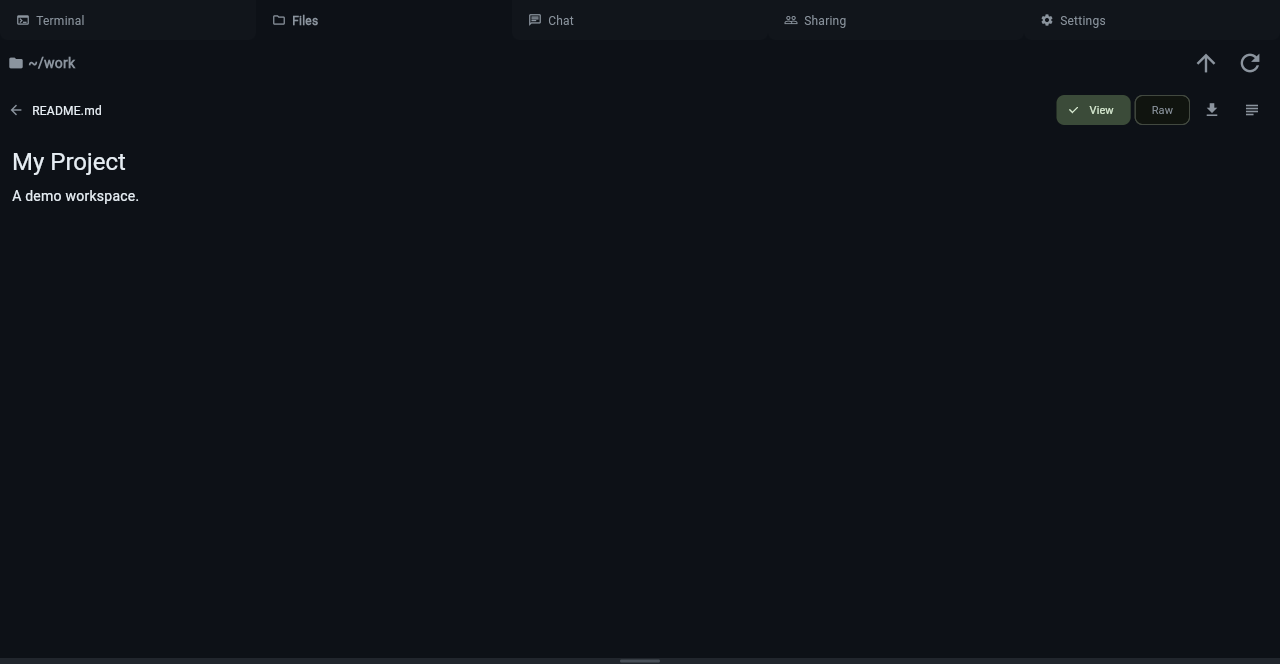
Supported previews include:
- Source code files with syntax highlighting
- Text files
- Images
- PDF documents
Context Menu
Right-click any file or folder for these actions:
- Download — download the file or folder
- Rename — rename with an inline dialog
- Delete — delete with confirmation prompt