Workspaces
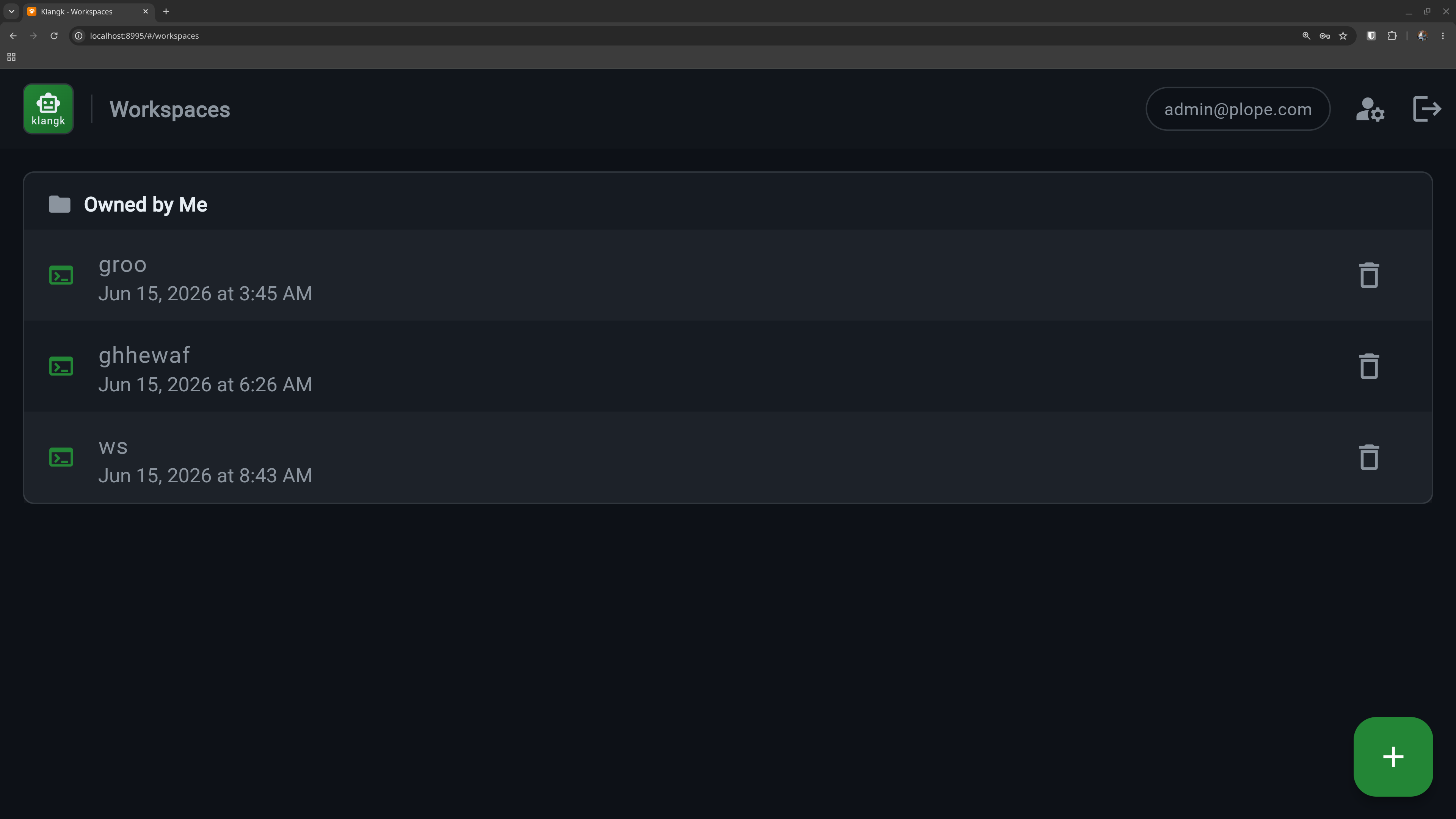
A workspace is an isolated coding environment — its own container with a terminal and file browser. Each user can create multiple workspaces for different projects.
Creating a workspace
Click the + button on the Workspaces page. Give it a name and optionally configure:
- Image — the container image to use (defaults to
klangk-workspace) - Service command — a command to run when you open the terminal
(e.g.,
pito start the AI agent automatically). If unset, the terminal starts a tmux session with a login shell. See Service Command. - Auto-start — start the container automatically when the Klangk server starts. Useful for service workspaces that should be running before any user connects. If the workspace also has a service command, it will already be running when you connect.
- Health check — a shell command Klangk polls inside the container to verify the service is actually healthy (exit 0 = healthy). See Health Check.
- Bind mounts — mount host directories into the container.
Disabled by default (#3153): with
KLANGKD_ALLOWED_MOUNT_ROOTSunset, host-path mount sources are rejected — only named volumes may be mounted. Setting it (comma-separated list of paths) allows directories under those roots. Protected paths like the Docker/ Podman socket are always blocked. - Environment variables — set custom env vars for the container
- Allowed egress domains — restrict outbound network access to a
list of hosts (e.g.,
github.com:443,pypi.org). See Egress Filtering. - Per-handle home — the home-directory layout. On: every member
gets a private
/home/<handle>(dotfiles, shell history, and agent configs are per-user). Off: everyone shares/home/klangk. The toggle only appears while the deploy permits per-handle homes at all (KLANGKD_PER_HANDLE_HOME=true); the checkbox starts on the server default, and if that default can't be fetched, the choice is left out and the server default applies. See The Shell. - Classification banner — a free-text classification marking
(e.g.
UNCLASSIFIED,CUI,SECRET) shown as a persistent banner at the top and bottom of the workspace page and as a status line in the TUI. Empty = the server default (KLANGKD_CLASSIFICATION_BANNER); when neither is set, no banner is rendered and no screen space is reserved. Downloaded/exported files are not marked — the screen banner is the scope.
You can change all of these later from the workspace Settings tab.
Home directory layout
Every workspace picks one of two home layouts:
- Shared home — all members share the single
/home/klangk. - Per-handle home — each member gets a private
/home/<handle>directory; see The Shell.
The choice appears on the create form and the Settings tab (web), the create and edit screens (TUI), and the CLI:
The deploy-wide KLANGKD_PER_HANDLE_HOME is a ceiling, not just
a default: while it is off, every workspace gets the shared home
regardless of its stored choice — a stored per_handle_home: true
(including the population migration 0009 backfilled for pre-feature
workspaces) is inert and clamped at the next connect/start, never
rewritten in the database. The toggle is hidden in the web UI and the
TUI while the ceiling is off (the create/edit forms and settings
panels read per_handle_home_available from /config); the CLI
flags remain accepted but cannot raise a workspace past the ceiling.
With the ceiling on, workspaces choose either layout (an omitted
create field stores the flag's value — per-handle). Changing an
existing workspace's layout applies from the next connect/start —
open terminals keep their layout until they end.
Auto-start
Workspaces with auto-start enabled start their containers automatically when the Klangk server starts — useful for service workspaces that should be available before any user connects. See Auto-Start for the full details, server configuration, and CLI usage.
What's inside a workspace
Each workspace runs in its own container with:
- A persistent home directory (survives container restarts) — the
shared
/home/klangkunder the default layout, or your private/home/<handle>/under per-handle (see Home directory layout above) - Pre-installed tools and AI agents (see Container Packages and AI Coding Harnesses)
Project files live directly in the home directory — there is no
separate project subdirectory. Your dotfiles (.bashrc, .gitconfig,
etc.), bash history, and Pi sessions all persist across container
restarts.
Sharing workspaces
Workspace owners can share access with other users or groups from the Sharing tab, or from the CLI:
klangk share my-project user@example.com                # share (coder role)
klangk share my-project user@example.com --role=owner   # share with role
klangk unshare my-project user@example.com              # remove access
klangk members my-project                               # list members
Shared users connect to the same container and see the workspace in a "Shared with Me" section on their workspace list.
Each shared user gets a role that controls what they can do — see Authorization for details.
Shared member avatars appear on workspace cards so you can see who has access at a glance.
Mount security
Workspace bind mounts are validated at create and edit time, and
the same check runs again every time klangkd creates the workspace's
container — immediately before it builds the podman command (#3278).
A source that changed after it was saved (for example, a directory
under an allowed root replaced by a symlink pointing elsewhere) is
refused with a clear start error instead of mounting whatever it
now points at. Reconnecting to an already-running container adopts
its existing mounts without a fresh check; the check runs on the
next create (restart). Two protections apply regardless of
KLANGKD_ALLOWED_MOUNT_ROOTS:
Protected paths — the following host paths are always blocked, even if they fall under an allowed root:
/var/run/docker.sock,/run/docker.sock,/run/podman/podman.sock— mounting a container engine socket grants full host controlKLANGKD_DATA_DIR(and anything beneath it) — contains every user's workspace home and the database
Volume isolation — named volumes (e.g., nix-store:/nix) are
workspace-owned (#3153): stamped with klangk.instance and the
owning workspace's id at creation, never a user. A workspace can
mount a volume only if the volume's workspace label matches it —
volumes cannot be shared between workspaces, not even by the same
user or the workspace's own members in another workspace. Deleting
a workspace removes its volumes (an orphan sweep reclaims
stragglers). Operators can cap volumes per workspace with
KLANGKD_VOLUME_QUOTA_PER_WORKSPACE (default 0 = unlimited),
enforced at both creation paths — the volumes API and the
workspace-start auto-create of mounted named volumes: an
API create past the cap fails with a clear 429, a workspace start
past it fails with a clear start error.
Idle timeout
Containers stop automatically after 60 minutes of inactivity
(configurable deploy-wide via KLANGKD_IDLE_TIMEOUT_SECONDS; the
default was raised from 30 to 60 minutes). Activity includes
terminal input, file operations, and AI agent events — so containers
stay alive during long-running LLM requests as long as events are
flowing.
When a container stops, the terminal shows an overlay with a restart button. Your files and home directory are preserved.
The idle timeout is the only thing that automatically stops a container. Logging out does not — your containers (and any service-command processes, like an auto-started gateway) keep running after you log out, so they're immediately available when you or a collaborator reconnect. Only the idle timeout (or an explicit, admin-gated Shutdown container command) tears a container down. This lets long-lived services outlive any single user's session.
Per-workspace override
A workspace owner can override the deploy-wide default for a single workspace — for example to keep a long-running service alive indefinitely, or to reap an expensive scratch workspace faster:
- Web UI: set Idle Timeout (s) in the workspace's Settings tab (or on the create-workspace dialog).
- CLI: pass
--idle-timeouttoklangk createorklangk edit. - API: set
settings.idle_timeout(a full-replace onPOST/PUT, or a partial merge onPATCH /api/v1/workspaces/{id}/settings).
The value is seconds. 0 means never idle out; unset means the
deploy-wide KLANGKD_IDLE_TIMEOUT_SECONDS default. An override takes
effect the next time the container starts — a running container keeps
its current timeout until it is restarted. Auto-started workspaces are
pinned to 0 at boot so they come up unattended and stay up between
user connections.
Export and import
Workspaces can be exported as archives and imported to create new ones. See Export & Import.