Terminal
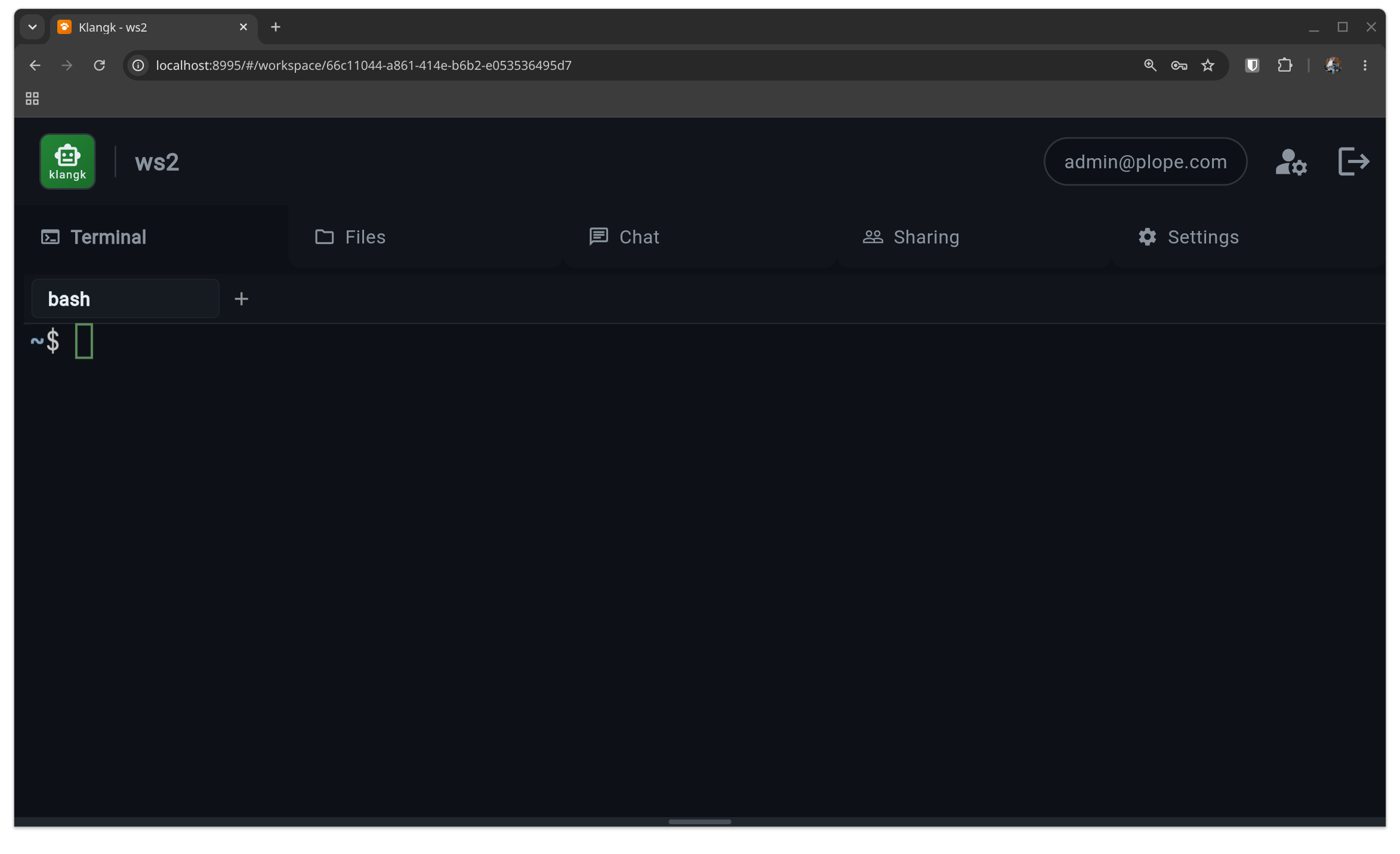
Klangk terminals give you shell access to a Linux container. Each workspace runs its own isolated Linux environment — when you open a terminal, you get a bash shell running on Linux regardless of whether your local machine is Linux, macOS, or Windows.
Under the hood, every terminal runs inside tmux, a terminal multiplexer. You never interact with tmux directly — Klangk's web UI and CLI manage everything for you — but understanding the basics helps explain how terminal features work.
Why tmux?
Klangk uses tmux for three reasons:
- Session persistence — your terminal survives disconnects and page refreshes. When you reconnect, you pick up exactly where you left off.
- Window management — each terminal tab is a tmux window. Switching tabs is instant because all windows share the same tmux session.
- Shared terminals — tmux session groups let multiple users see the same terminal in real time. One user's session group can have spectators or collaborators attached.
Tmux runs with no prefix key and no keybindings beyond scrollback — it
looks and feels like a plain terminal, with a subtle status bar at the
bottom showing the workspace name and the disconnect hint
Exit: Enter, then ~. on the left, and a clickable + new segment on
the right that opens a new window.
How it maps to what you see
| Klangk concept | tmux concept |
|---|---|
| Terminal tab | tmux window |
| Your set of tabs | tmux session (named by your user ID) |
| Joining a shared terminal | New tmux session in the owner's session group |
| Tab name | tmux window name (persists, visible to other users) |
| Shell exit + respawn | remain-on-exit + pane-died hook respawns the shell |
Status bar
Every terminal displays a thin status bar at the bottom of the screen.
The left side shows the workspace name and the disconnect hint
Exit: Enter, then ~.; the right side shows a clickable + new
segment that opens a new tmux window — it works identically in
klangk shell and the browser terminal, since both are tmux clients on
the same session. This helps you keep track of which workspace you are
in, especially when you have multiple shells open across multiple
workspaces.
The status bar is managed by tmux and cannot be dismissed through normal interaction (the tmux prefix key is disabled). It uses one row of terminal height.
Using the terminal
The terminal panel gives you direct shell access to the workspace container. It starts on demand when you click the Terminal tab.
- Runs as the
klangkuser with bash (see The Shell for zsh and customization) - Select to copy — selecting text with the mouse automatically
copies it to your system clipboard. This is a tmux feature: the
selection is a tmux copy-mode selection (not a native browser
selection), so it can span the full scrollback buffer, not just the
visible viewport. To make a native browser selection instead (e.g.,
for copying a URL), hold Shift while dragging. The same selections
also auto-copy in
klangk shell(CLI) via OSC 52 — see the CLI reference for the terminal-support matrix. - Right-click context menu with Paste (and Copy when text is selected)
- Mouse wheel scrollback via tmux copy mode
- If the container stops (idle timeout or crash), an overlay appears with a restart button. The terminal auto-reconnects after restart.
Exiting a klangk shell session
Typing exit or pressing Ctrl+D does not disconnect you from
the container. Klangk's tmux is configured with remain-on-exit, which
keeps the pane alive and immediately respawns a new shell. This is
intentional — it prevents you from accidentally losing your terminal
session.
To actually disconnect from a klangk shell session, use the SSH-style
escape sequence: press Enter, then ~, then . (period). This
cleanly disconnects the CLI client without affecting the tmux session
inside the container.
Terminal tabs
The Terminal tab itself mounts only for members holding the
terminal permission — every seeded role that uses the terminal
has it, and a custom ACL can omit it (e.g. a files-only member sees no
Terminal tab at all; opening the workspace at all is gated on
join-workspace instead).
Each user has their own set of terminal tabs. Tabs map 1:1 to tmux windows inside the container. All tabs share a single tmux session named by your user ID, so switching tabs is instant.
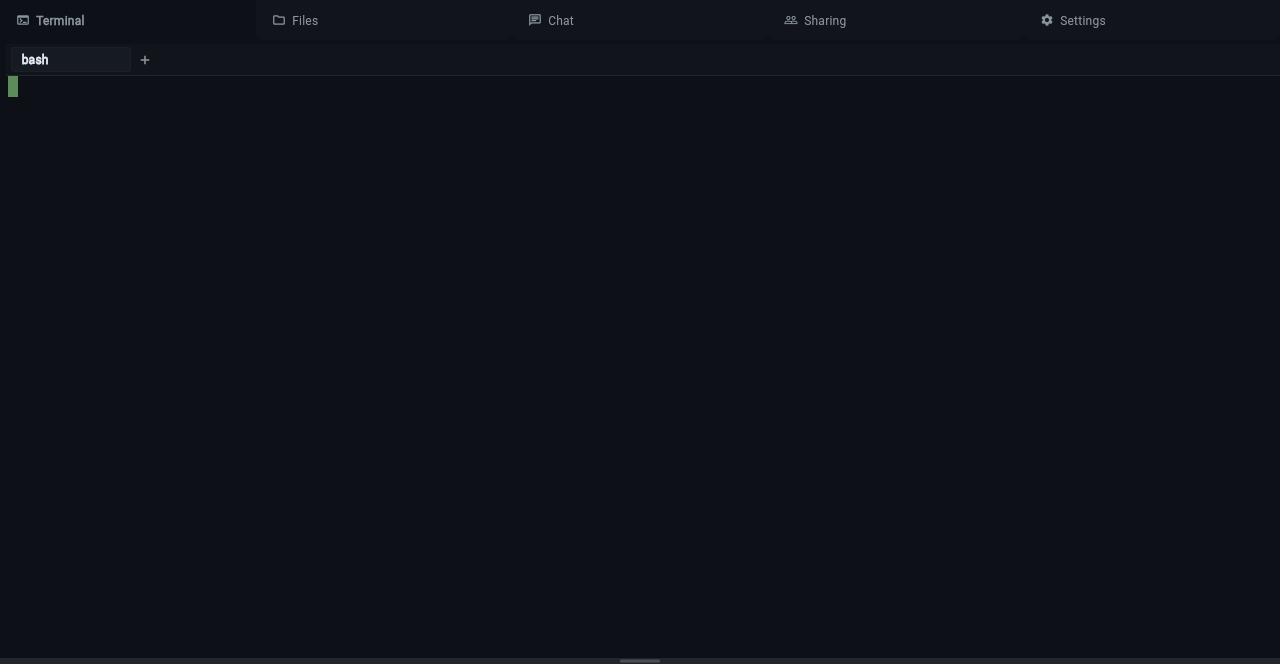
- Click + to create a new terminal tab (tmux window)
- Click a tab to switch to it
- Click ✕ on a tab to close it (only shown when more than one tab exists)
- Right-click a tab to open a context menu with Rename and
Share/Unshare (the Share entry is hidden for members without the
share-terminalspermission; Unshare stays available for a tab that is already shared — see Role permissions below)
Renaming tabs
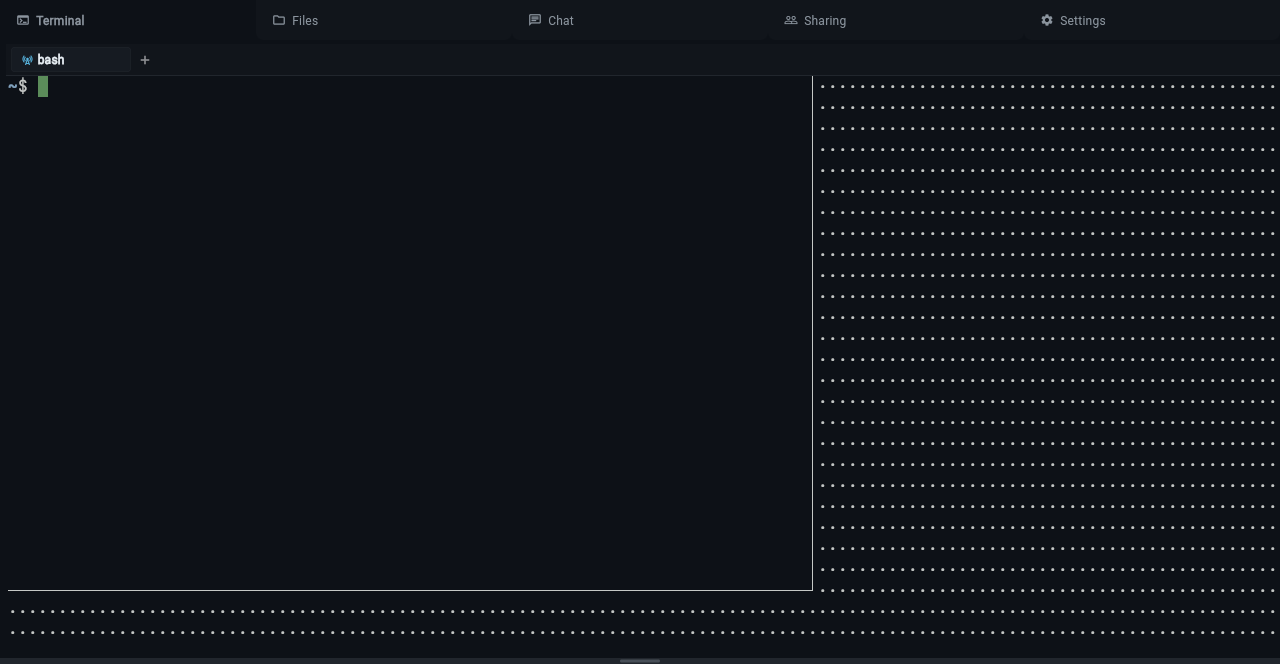
Right-click any tab and select Rename to change its display name. The name is stored as the tmux window name, so it persists across reconnections and is visible to other users if the tab is shared.
Shared terminals
Any terminal tab can be promoted to a shared terminal, making it visible and joinable by other workspace members. Sharing is per-tab — you can share one tab while keeping others private.
Under the hood, when a user joins a shared terminal, Klangk creates a new tmux session in the same session group as the owner's session. Session groups share the same set of windows, so all participants see the same content in real time. Each joiner gets an independent tmux session (separate scroll position, active window selection) but shares the underlying window panes.
Sharing a tab
Right-click a tab and select Share. The tab gains a broadcast icon indicating it is now shared. Other workspace members see the shared tab appear in their tab bar.
Sharing requires the share-terminals permission on the workspace —
owners and collaborators have it by default, coders and spectators do
not. A member without the permission sees no Share action (the context
menu shows only Rename), and the server rejects the request if one is
sent anyway. Unsharing is not permission-gated — the server always
lets a member unshare their own tab, so a revoked permission can never
strand a tab in the shared state. The Unshare affordances (context menu
and broadcast icon) stay operable wherever your own tabs are shown; a
member demoted to a role without isolated terminals (a spectator) no
longer sees their own tab strip and can unshare from the CLI instead
(klangk terminal unshare).
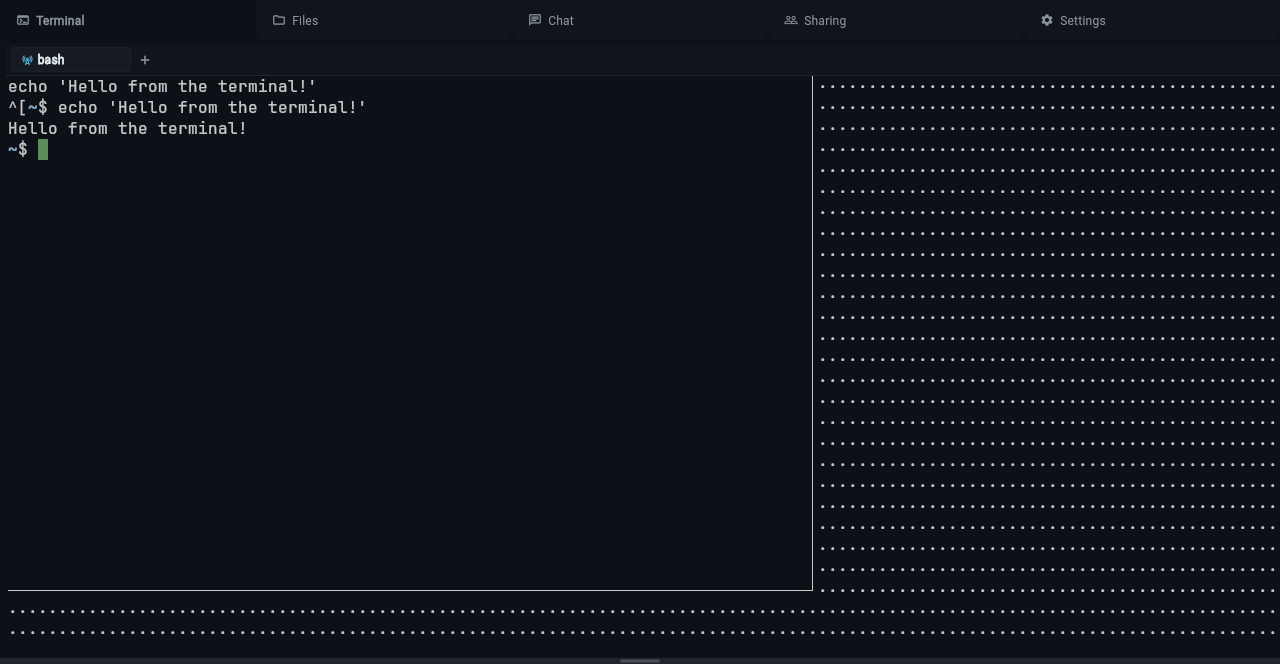
To unshare, either:
- Right-click the tab and select Unshare, or
- Click the broadcast icon directly
Joining a shared terminal
Shared terminals from other users appear in your tab bar with a prefix
showing the owner's handle (e.g., alice:build). Click the tab to join —
you are now seeing the same terminal session as the owner.
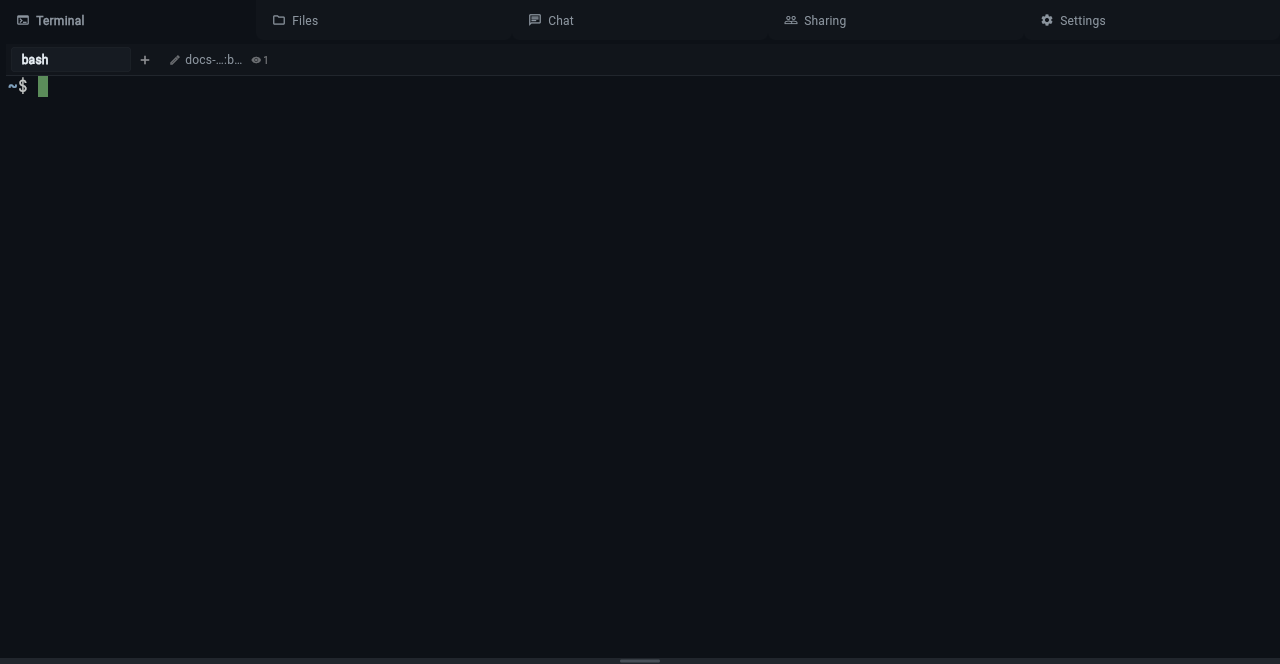
Joining requires the spectate-on-shared-terminals permission (every
role has it by default). Depending on your role, you may be able to
type (read-write) or only watch (read-only); read-write needs
code-in-shared-terminals or share-terminals. A lock icon indicates
read-only access.
Viewer tracking
When someone joins your shared terminal, an eye icon with a count appears on the tab showing how many users are currently viewing.
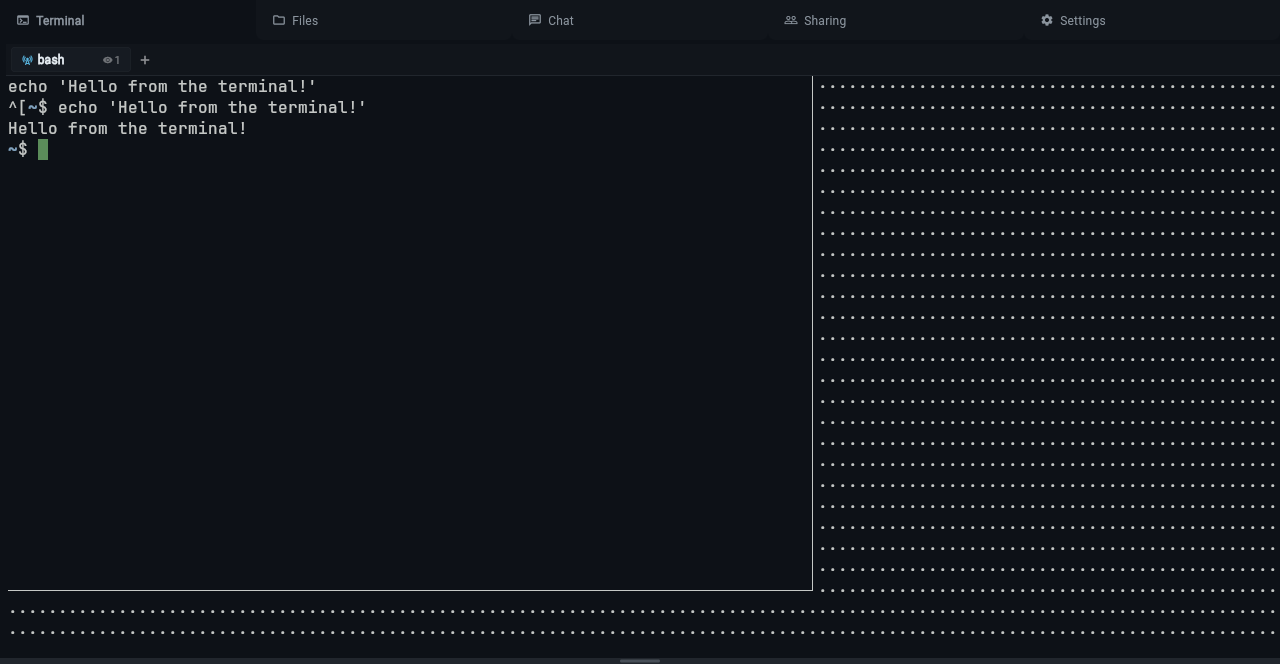
Hover over the tab to see a tooltip listing the full tab name and the handles of all current viewers.
Role permissions
| Permission | Owners | Coders | Collaborators | Spectators |
|---|---|---|---|---|
join-workspace |
* | yes | yes | yes |
terminal |
* | yes | yes | yes |
code-in-isolation |
* | yes | yes | |
share-terminals |
* | yes | ||
code-in-shared-terminals |
* | yes | ||
spectate-on-shared-terminals |
* | yes | yes | yes |
files-view |
* | yes | yes | |
exec-and-sync |
* | yes | yes | |
egress-consent |
* | yes | yes |
* Owners have the wildcard (*) permission which implies all permissions.
The table shows the terminal-sharing-related default grants for each
seeded role; permissions can be tuned per workspace in the ACL editor.
Sharing is enforced server-side — without share-terminals the share
command is rejected (unsharing your own tab is always allowed, since it
only reduces exposure) — and so is joining, via
spectate-on-shared-terminals.
- Owners can share/unshare tabs, type in shared terminals, and rename tabs.
- Coders can watch shared terminals (read-only) but cannot share their own tabs or type in others' shared terminals. They have full isolated terminal and file access.
- Collaborators can share/unshare their own tabs and type in shared terminals. They have full isolated terminal and file access.
- Spectators can watch shared terminals in read-only mode. They cannot start isolated terminals or access files.