Authorization
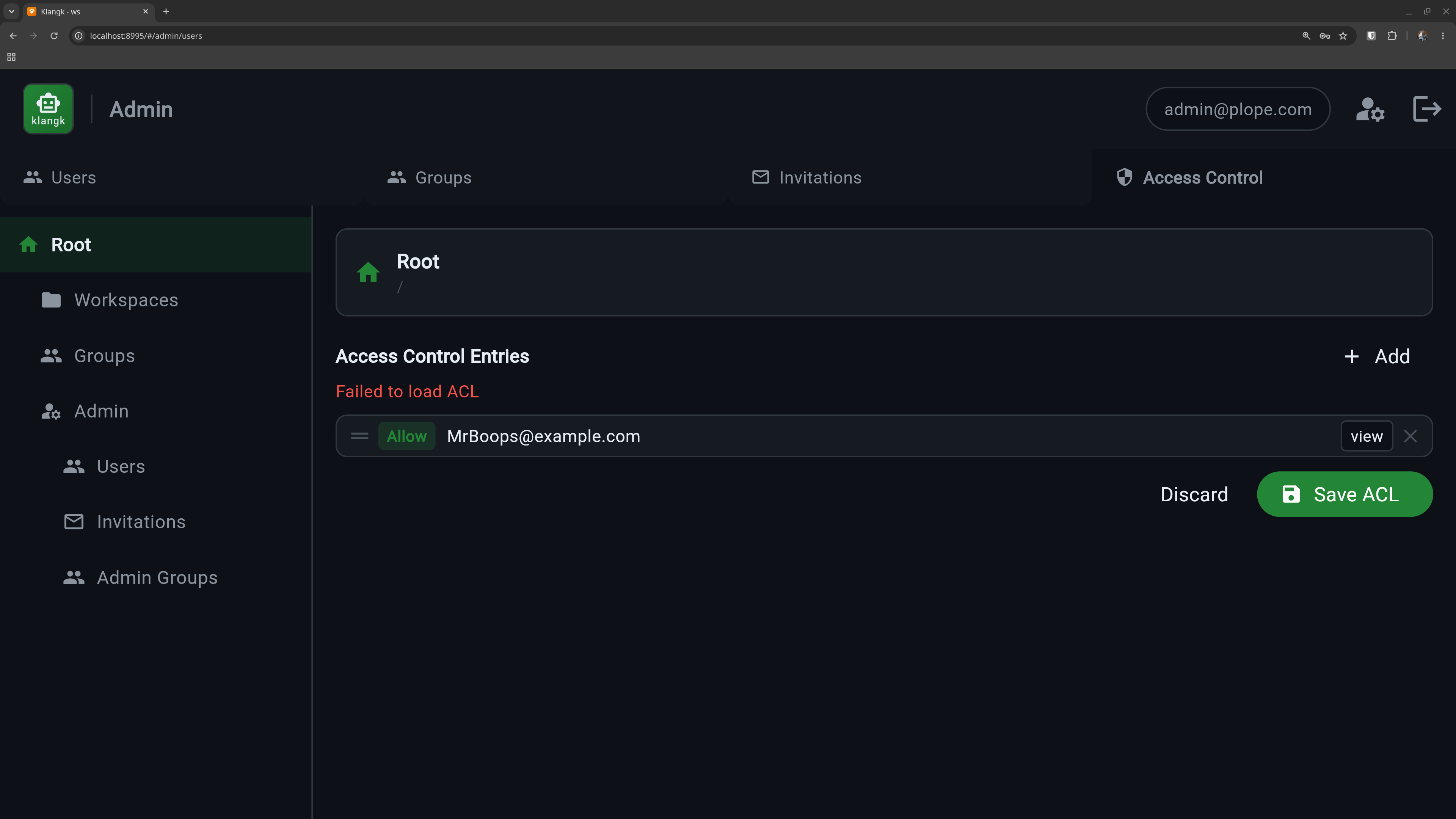
Klangk controls who can do what through an Access Control List (ACL) system. Every resource — workspaces, admin pages, groups — has a list of rules that say which users or groups are allowed or denied specific actions.
How it works in practice
You don't usually interact with ACLs directly. Klangk wraps them in friendlier interfaces:
- Workspace sharing — the Sharing tab on each workspace lets you add users or groups and assign them a role (Owner, Coder, Collaborator, Spectator). Behind the scenes, each role maps to a set of ACL entries, and each bucket lists the permissions its group currently holds — read live from the ACL, so edits made in the Advanced ACL editor show up on reload.
- Admin panel — the Admin page lets you manage users, groups, and global access rules.
- UI visibility — tabs and buttons appear or disappear based on
your permissions. If you don't have
files-viewpermission on a workspace, the Files tab won't show up; likewise the Terminal tab needsterminal, while opening the workspace at all needsjoin-workspace.
For advanced use cases, the Advanced ACL editor in the Sharing tab lets you view and edit the raw ACL entries directly.
Workspace roles
When you share a workspace, you assign a role that determines what the person can do:
| Role | Terminal | Files | Share terminals | Type in shared | Create shared |
|---|---|---|---|---|---|
| Owner | yes | yes | yes | yes | yes |
| Coder | yes | yes | watch only | ||
| Collaborator | yes | yes | watch + type | yes | |
| Spectator | watch only |
See Terminal - Role Permissions for the full permission breakdown.
Groups
Groups are named collections of users. Two built-in groups are created automatically on first startup:
- admin — the seeded admin user is added to it. Members can create workspaces and access admin functions.
- members — every new user is added automatically (registration, invitation acceptance, OIDC first login, admin-created). Has no permissions by default, but deployers can grant permissions to this group to apply them to all regular users.
You can create additional groups (e.g., "engineering", "design") and share workspaces with an entire group instead of individual users.
Manage groups from the Admin panel under the Groups tab. By default,
only members of the admins group can manage groups — the whole
Groups tab (create, edit, delete, member management) is gated by
manage-groups on /groups. To delegate group management, add an
Allow entry for the manage-groups permission on the /groups
resource targeting the group of your choice via the ACL editor — the
same recipe as
workspace creation.
Default access rules
On first startup, Klangk seeds these defaults:
- Any logged-in user can view pages
- Any logged-in user can create workspaces (#3137 — every user
created since #2569 joins the
membersgroup, which holds the seededcreate-workspaceAllow on/workspaces; users created before #2569 on an upgraded deployment never joined retroactively — grantAuthenticatedinstead ofmembersto cover them) - Only members of the
adminsgroup can create groups or access admin functions - Unauthenticated users are denied everything
Restricting workspace creation
Workspace creation is self-service by default. To restore the pre-#3137 admin-only posture (or scope creation to a narrower group):
- Open the Admin panel and navigate to the ACL editor.
- Select the
/workspacesresource. - Add a Deny entry for the
create-workspacepermission, targeting themembersgroup (or the Authenticated system principal), positioned ahead of the seeded members Allow row — the ACL walk is first-match-wins. To allow a narrower set instead, delete the members Allow row and add an Allow entry targeting the group of your choice.
The create and import buttons in the web UI will automatically appear
or disappear for users as their effective create-workspace
permission changes.
Learn more
For the full ACL reference — resource trees, ACE ordering, the ACL walk algorithm, and troubleshooting — see ACL System.