The TUI
The terminal UI and the command-line client are one program named msks.
The TUI uses the same REST API as the CLI commands, with the same environment variables, config file, and daemon aliases. It reads no daemon state directly. Every page uses the API.
A bare msks (no arguments at all) launches the TUI. The default page is a
full-screen workspace tree. msks tui is the same command, and msks tui
my-workspace opens that workspace's page directly.
The workspace tree
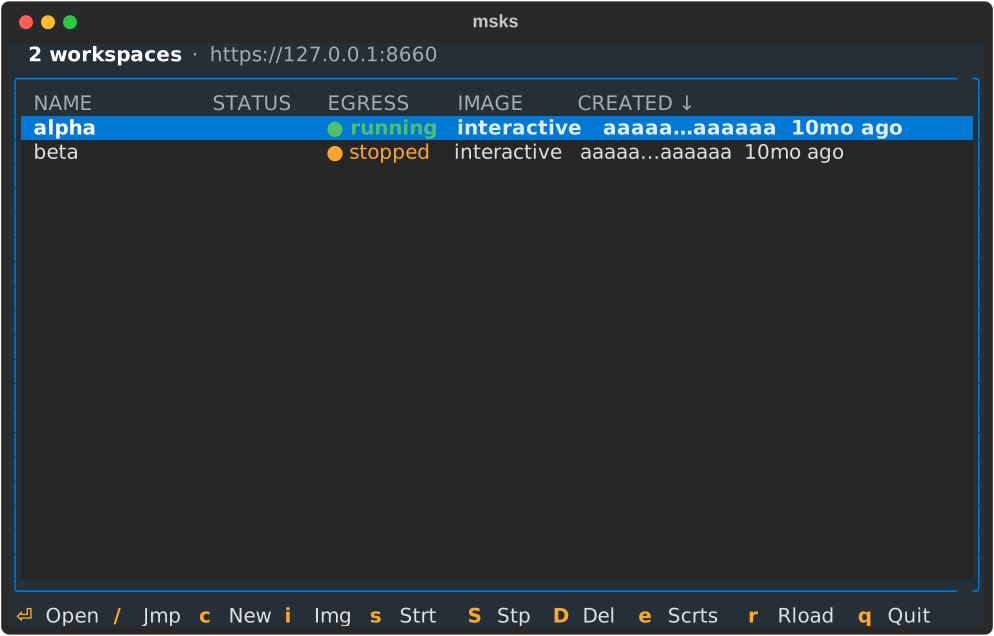
The tree is rooted at the workspaces list: one row per workspace,
newest first. The CREATED column's arrow shows the sort direction. The
list's keys: c creates a workspace, s starts it, S stops it, D
removes it (after a confirmation), e opens the secrets page, and r
refreshes. / jumps to the first workspace whose name starts with what
you type. Enter opens the workspace's page.
The list re-reads the daemon every five seconds. A workspace changed from another surface (the CLI, another operator) appears without a keypress.
Workspace creation
When you create a workspace, it looks like this:
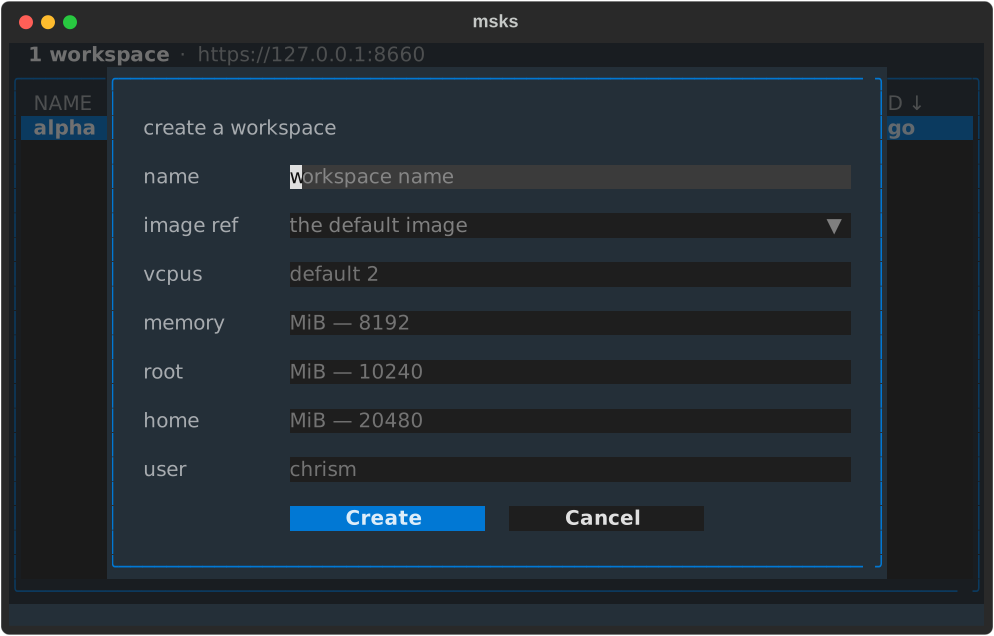
The only required field is name. You may need to import an
image before you can successfully
create a workspace. There are Debian, Fedora, and NixOS images available for
import. You can also build your own.
You can change vcpus, memory, root, and home values after a workspace
is created. The rest are fixed for the lifetime of the workspace.
The secrets page
You can register secret placeholders to use in workspaces instead of putting actual secrets into VMs.
The secrets page lists every placeholder the daemon holds, in columns:
coverage (* for the daemon-wide row, otherwise its workspace ids), name,
destinations, remaining lifetime, and created date.
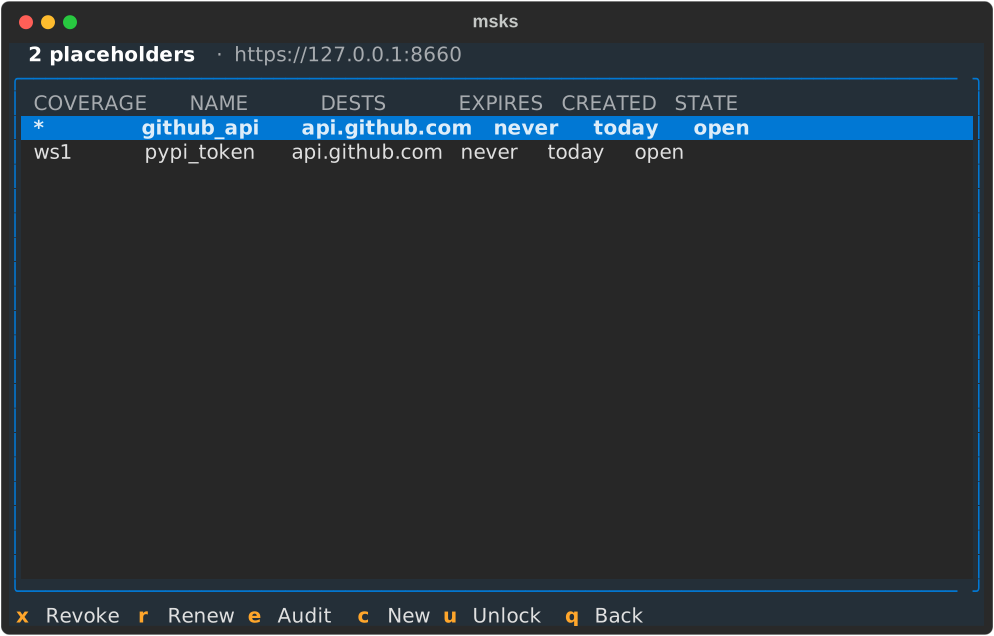
The lifetime cell is a live countdown (2h, then 1h), repainted every
second. An unbounded row reads never. x revokes the focused row after a
confirmation that explains what a revoke does: the row retires everywhere at
once. r opens the duration picker with TTL-appropriate choices, an hour to
thirty days. The choice nearest the row's remaining lifetime is highlighted.
Picking one extends the row in place.
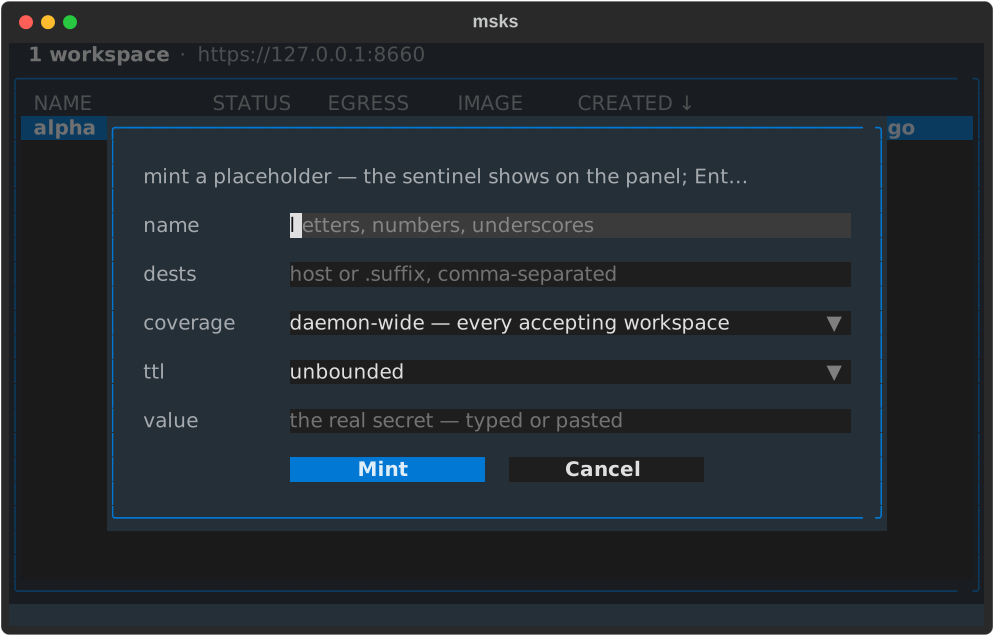
c opens the mint form. The name field comes first, then repeatable
destinations: an exact host or a label-anchored suffix, comma-separated
in one field. Coverage follows: the daemon-wide row, or a multi-select
fed by the tree's workspace list.
The lifetime field offers unbounded by default, with an hour to thirty days
beside it. Submit checks the secret store first for dupes, then mints.
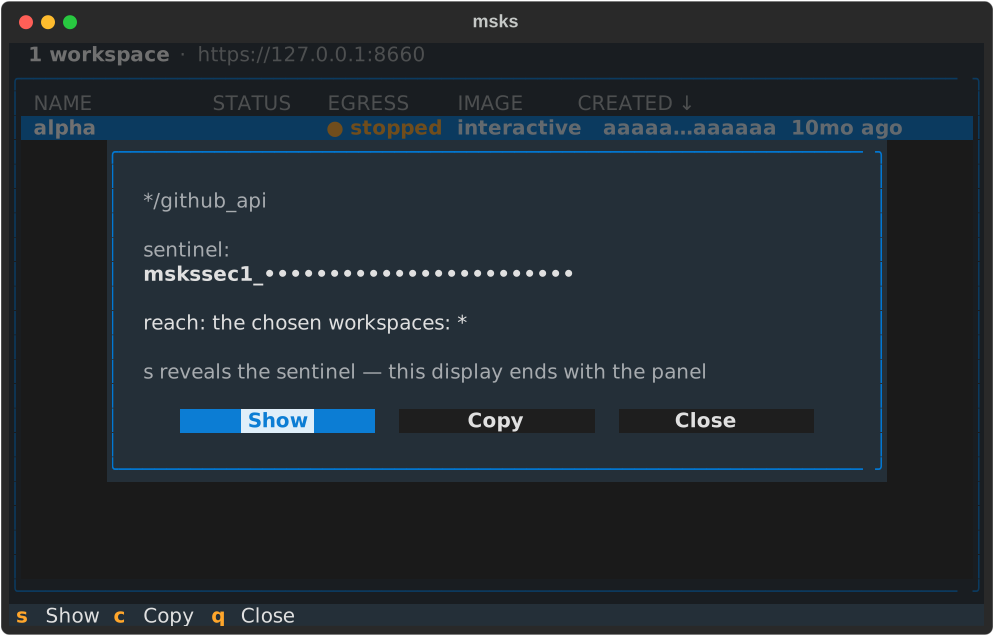
A successful mint replaces the form with the sentinel's panel. The sentinel
opens masked: the prefix shows its reach (mskssec1_ is scoped to the
chosen workspaces, mskssec2_ goes to every accepting workspace), and the
body renders as bullets. s shows and hides it again. c copies the
sentinel to the terminal's clipboard over OSC 52. A terminal that honors the
sequence answers the copy (over ssh included, with no reveal needed).
The display ends with the panel: closing it clears its text, and the minted row stays in the page's list. Enter (or a click) on a listing row opens the panel again. The page fetches the row's sentinel from the daemon and shows it with the same show and copy actions. The sentinel therefore reads back on demand, both at mint time and after.
The workspace page
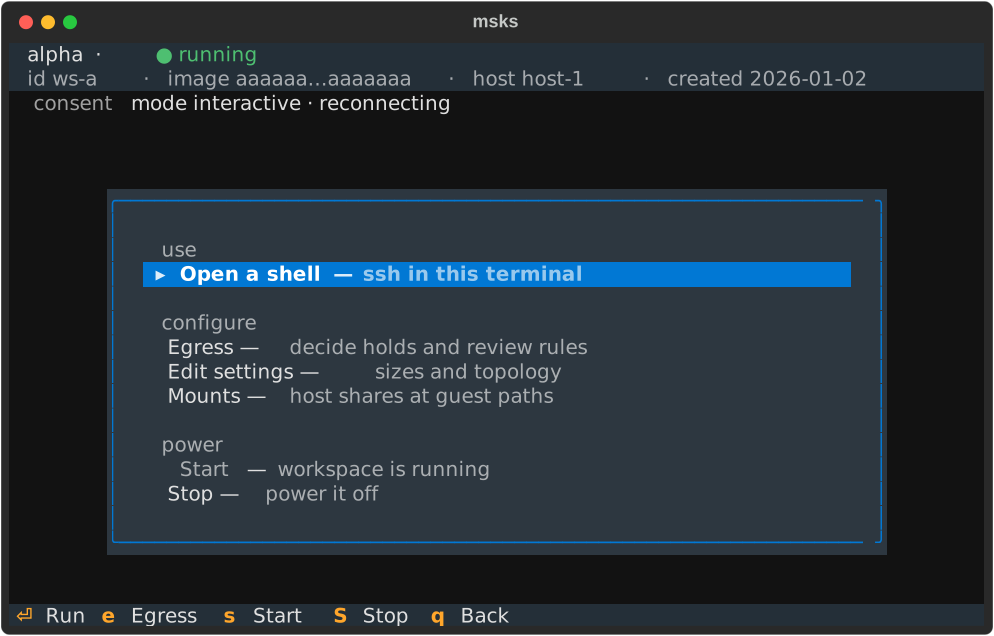
The workspace page operates on an already-created workspace. Its two-line header: the workspace's name on the first line with its status beside it, in the state's color, then the id, image, host, and created date on the second.
Below the header, two status lines share one shape: a muted label,
then the value. The consent line shows the mode and one granted
scope with its expiry. Two or more grants show as a count with the
nearest expiry (5 grants · next expires 4h). Grant details are
listed on the workspace's egress consent screen.
When the workspace mounts host shares, a mounts line follows the same shape.
It carries one entry per mount (projects:/mnt/projects:rw), a skipped
mount's kind beside its spec (refs:/srv/refs:ro · skipped), and an
applies at next start note while a change is pending.
The mounts page
The mounts editor shows the workspace's mounts one row each, in the
CLI's HOST_PATH:GUEST_PATH:MODE grammar with the mode always shown.
a adds a row (a single-line input), Enter edits the focused row
(seeded with its current spec), r removes it, and Escape closes the
editor with the last saved set.
Every change posts the whole list to the daemon's mounts route. The reply
repaints each row with its derived state (healthy, or the skip's kind and
reason). A refusal appears on the editor's note line, and the refused list
is rolled back.
The daemon owns the rules: a host path outside the allowed roots, or one
under a root the daemon's VM does not mount, is refused with the remedy
stated. The mounts chapter and the configuration
rows describe the behavior. The CLI's msks
mount uses the same route.
The images page
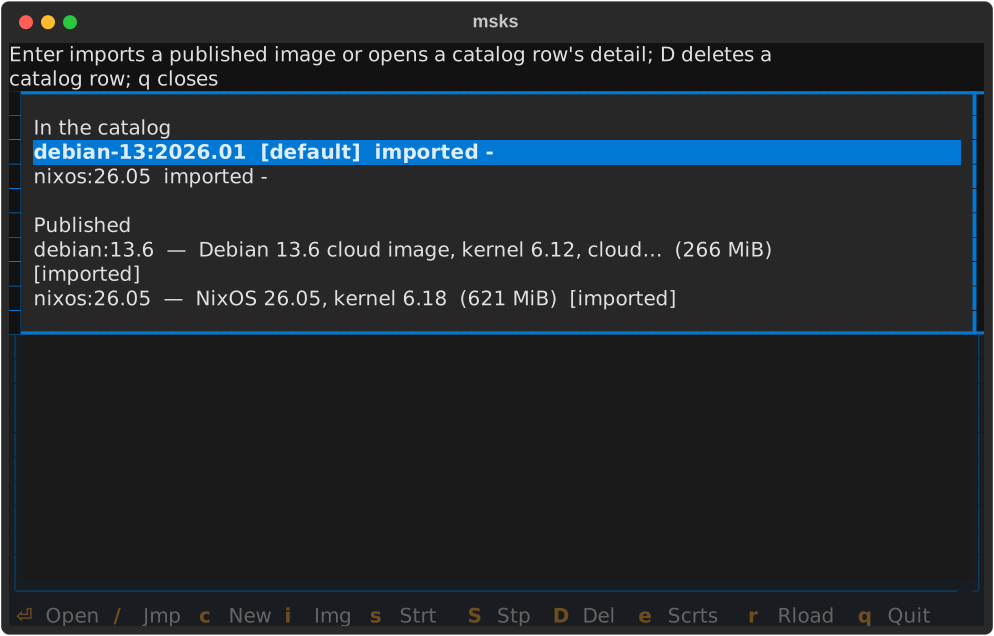
i: the image page. The catalog group comes first, with the default
marker and each import's date on its rows. Then the published channel's
rows follow, with their descriptions, sizes, and membership markers.
The published group lists only the rows this daemon's machine can boot: a
row that declares another architecture stays off the page. A row that
declares none is shown (msks image import follows the same rule).
[imported] marks a row whose archive the catalog holds by exact hash
match; [in catalog, other build] marks a row the catalog holds under a
different hash. 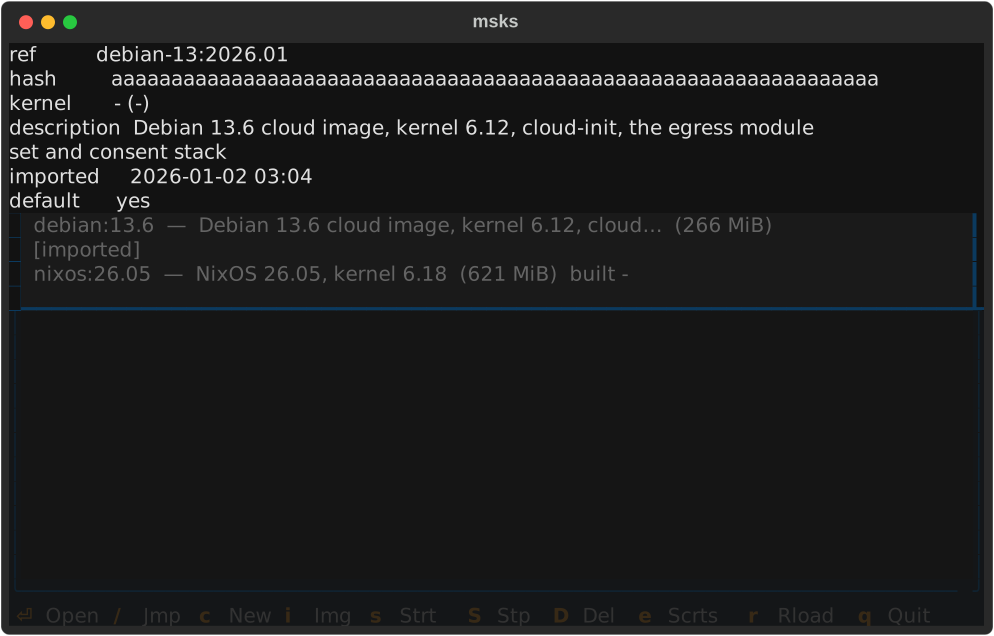
Enter imports a published row through the daemon's URL import or opens a catalog row's detail.
D deletes a catalog row after a confirmation, the same DELETE msks
image rm makes. The page re-reads the workspace each second, so the
dimming follows a start or stop made anywhere, not only on the page.
The egress consent page
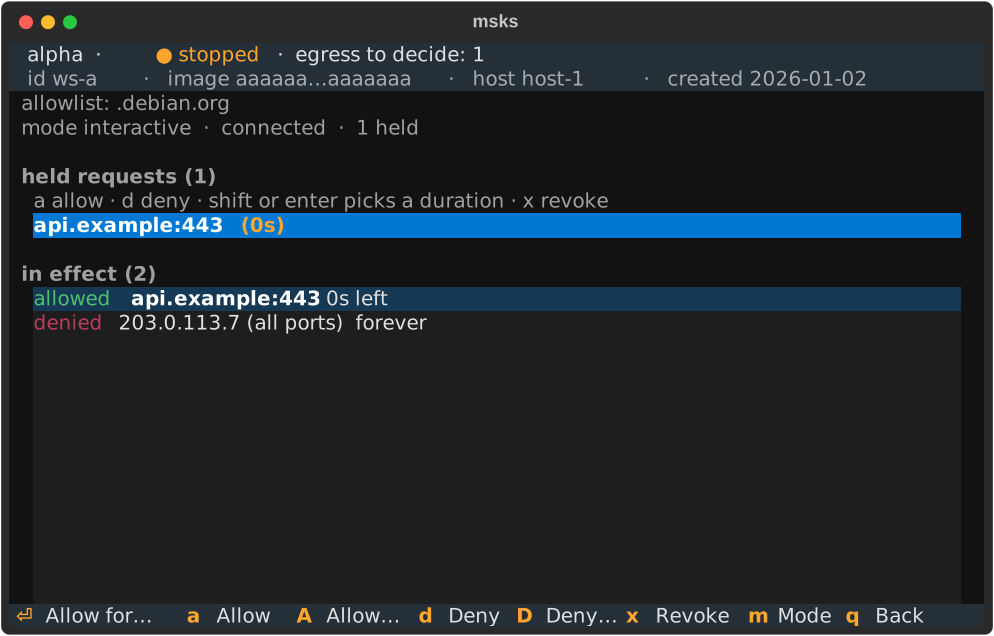
The page's Egress action and its e key open the egress consent
page: a full-screen view that holds the held-request queue and the
in-effect verdicts together. It is the consent decider as a page inside
the tree, and the only place verdicts are made.
The page carries the same two-line header as the workspace page beneath it: the workspace's name with its status (and the pending-hold count while any hold waits), then the id, image hash, host, and created date, muted. The workspace's identity stays visible while verdicts are made.
Keys on the page: the arrows navigate the held requests and cross into the
verdict rows beneath (and back). a/d allow or deny the focused hold for
the default duration (tilrestart); A/D pick a duration first (once /
5m / 15m / tilrestart / forever). The letters act on the holds alone: a
press aimed at the wrong zone reports which zone it would act on, instead of
deciding silently. x revokes the focused verdict. The row leaves on the
daemon's refreshed frame, never optimistically.
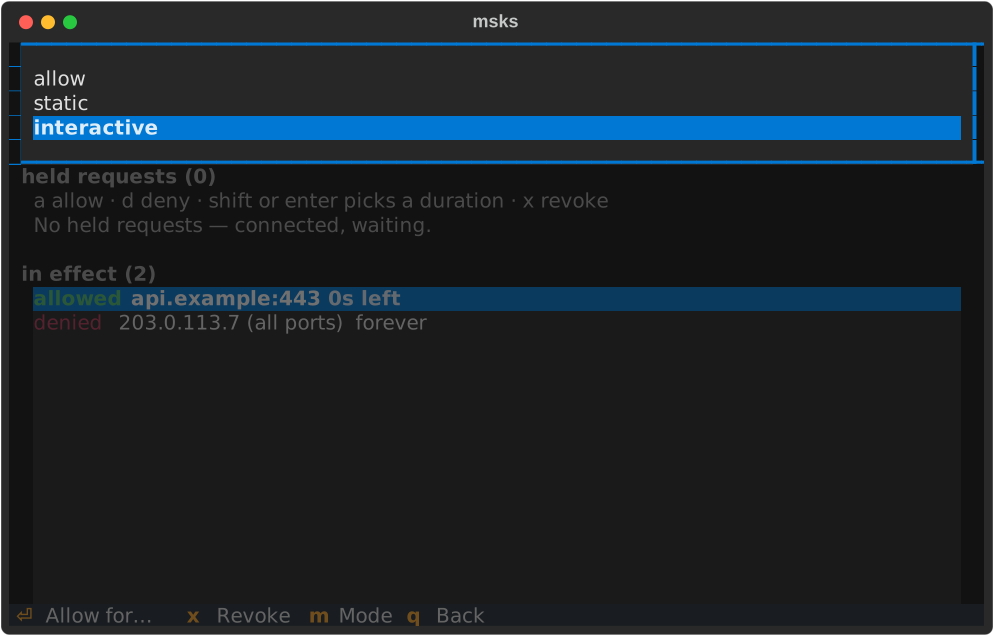
m opens the mode picker (allow / static / interactive, the
current mode highlighted). Picking a mode switches it
through the same endpoint msks egress mode uses, without leaving the
page. The status line shows the new mode once the switch takes effect.
Picking static while nothing is effectively allowed asks the same
offline-workspace confirmation the CLI asks: confirm to switch, decline
to change nothing. A refused switch states its reason on the status
line.
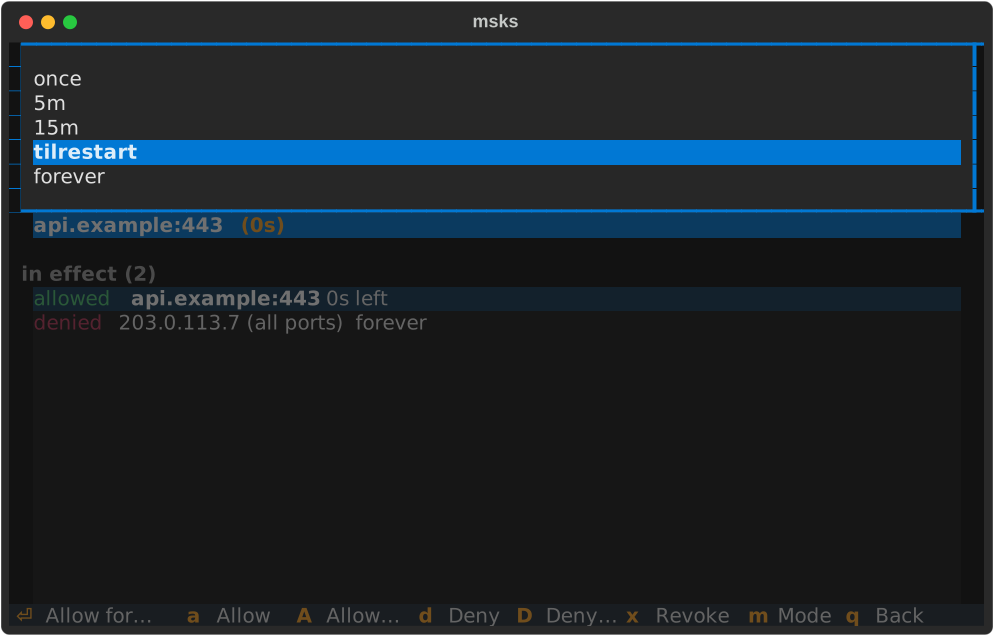
Enter on a focused hold opens the duration picker: the key answers, the
pick decides, and only an explicit letter or a picked duration ever
decides. While no hold waits, the verdict keys do nothing and leave the
footer until one arrives. See msks egress for
what verdicts and rules cover.
The edit page
The page's Edit settings action opens the edit dialog: the create
form's layout, seeded with the workspace's current values. 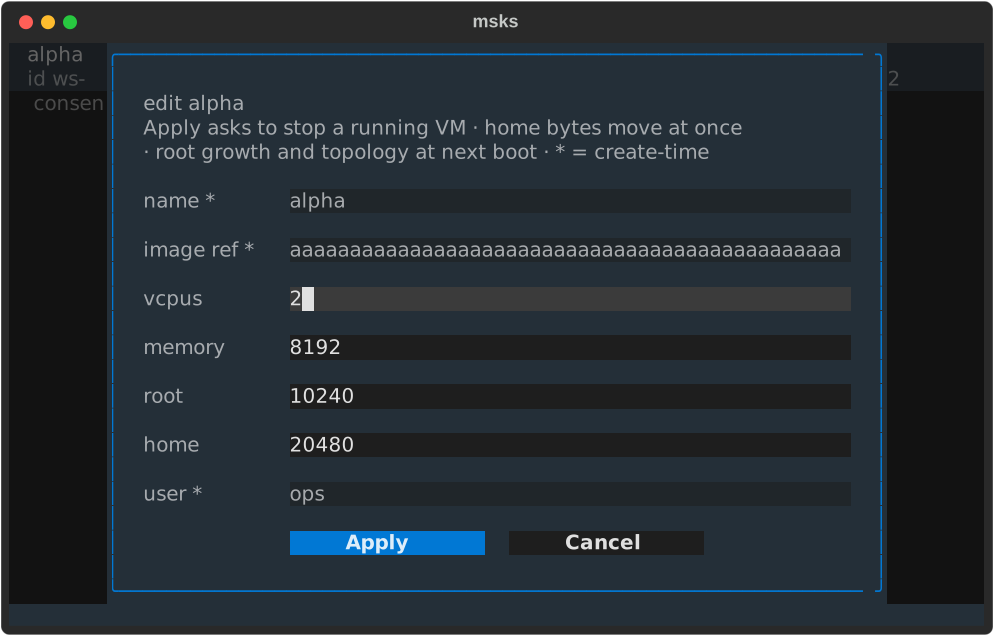
The sizes and topology (root, home, vcpus, memory) are editable. Submit
sends the changed values to the same endpoint msks resize uses, and
the page's consent line shows the same outcome the CLI prints,
including changes that wait for the next boot.
A workspace that is running when you press Apply asks first: confirm and the page stops the workspace, then applies the resize. Decline, and the workspace keeps running with its sizes unchanged. Home size changes apply immediately. Root growth and the new topology apply at the next boot.
A resize the daemon still refuses (a root shrink, among others)
states its reason on the consent line. The name, image, and user fields
show their current values read-only, marked * as create-time:
changing them is a delete-and-recreate, and the dialog refuses a
changed value with a note pointing at the field, instead of accepting
it silently. A size left blank keeps its current value. Escape closes
the dialog and changes nothing.
Opening a shell
By default, the page's Open a shell action runs msks ssh in the TUI's own
terminal: the tree exits, the ssh session runs where it stood, and the tree
restarts when the session returns the terminal. Configure msks to open
shells in new windows using terminal_open_cmd, documented below.
A workspace that ssh cannot reach (no NIC, no identity configured) takes a
longer path. The flow boots a stopped workspace first and probes the forward. A
probe that reports a refusal opens no session: the tree's first flash leads
with a suggestion to use msks console as a fallback and follows with the
refusal's first line. The row ellipsizes at its end, so the suggestion stays
visible. The full refusal text is logged before the tree restarts.
A host that wants shells in windows beside the running tree configures a
terminal launcher (terminal_open_cmd below). The action then spawns the
launcher with a msks ssh invocation appended. The spawned shell inherits the
tree's resolved connection, so it reaches the same daemon. A launcher that
cannot start (a missing binary, one without the execute bit) reports the reason
on the tree's first flash, exits to the workspace page.
Every screen is navigable with arrow keys. Lists move with up/down, the
create form's fields move with up/down between them, and Escape leaves the
screen it is on. q backs out of a page. At the workspaces list, Escape
quits the tree. Ctrl+Q exits the client from any screen (the tree, a page, a
form field, or a panel stacked over them), the same clean exit q takes at
the workspaces list.
The shell action's terminal settings
The workspace page's Open a shell action runs msks ssh: in the TUI's
own terminal by default, or in a new window through a configured launcher.
Two client settings shape those windows. Their environment-variable rows are
in the client environment table. Their file
keys are documented here.
terminal_open_cmd
terminal_open_cmd is the launcher the workspace page's Open a shell
action uses to open workspace shells in new terminal windows. It is the opt-in
for hosts that want windows beside the running tree isntead of within. The msks
invocation is appended after it, the way most terminals take a command after
-e / --:
terminal_open_cmd: konsole --hold -e   # string form (shell-split)
terminal_open_cmd:                     # Linux (list form, no shell quoting)
  - ghostty
  - +wait
  - -e
terminal_open_cmd:                     # macOS (open launches Ghostty.app)
  - open
  - -na
  - Ghostty.app
  - --args
  - -e
Any terminal is supported, but let's explain the options to the Ghostty
terminal examples anove. On Linux, Ghostty's -e takes the appended
invocation as the window's command, and +wait holds the ghostty process until
the window closes — the same hold konsole -e gives. On macOS the ghostty
CLI is a helper tool; open -n starts a new Ghostty.app instance and --args
hands it the -e. A window opened through open runs with a fresh login
environment: nothing from the shell the TUI runs in passes through. The
appended client therefore locates its packages and its daemon on its own.
terminal_open_cmd's environment form (MSKSC_TERMINAL_OPEN_CMD) overrides
the file value with the string form. Unset (the default), the shell action
runs msks ssh in the TUI's own terminal, on every host, with no terminal
to launch. A configured launcher that fails to execute (a binary that is
missing or not executable) reports the reason on the tree's first flash
after the same-terminal shell ends. The shell runs in the same terminal.
terminal_title
terminal_title sets the title of every terminal window the workspace
page's shell action opens through a configured launcher. {workspace}
resolves to the workspace's id (the token msks ssh addresses; that is
what the TUI appends to the launcher), or to shell when the appended
command addresses no workspace:
A launcher that runs msks-term-popup writes the title before it attaches
tmux, and the launch's own tmux server pins set-titles off. The title stays
for the window's lifetime: a workspace shell inside the window cannot rewrite
it. Every other launcher gets the title from the appended msks ssh itself:
the window msks opens is marked at spawn, and the command sets it before the
session starts. A workspace that sets its own title from inside the session (a
PROMPT_COMMAND with a title escape, the way stock ssh sessions can) rewrites
it there. tmux shields the popup path. Nothing shields the plain path.
terminal_title's environment form (MSKSC_TERMINAL_TITLE) overrides
the file value. The default is unset: the terminal emulator's own title
stays in place (the command it runs, or whatever its -T / --title
flag sets). A msks ssh you type yourself keeps your terminal's title:
the setting applies only to the windows msks opens, and a same-terminal
shell (the dead-launcher fallback) changes nothing.
msks-term-popup: the consent-decider terminal
msks-term-popup is a shipped client command that runs the appended
shell inside a local tmux session and answers the workspace's egress
consent prompts right there.
To use, it change your msks.yaml config file such that it's the program
opened by terminal_open_cmd. For example:
terminal_open_cmd: konsole -e msks-term-popup
terminal_open_cmd: xterm -e msks-term-popup
terminal_open_cmd: ghostty +wait -e msks-term-popup       # Linux
terminal_open_cmd: open -na Ghostty.app --args -e msks-term-popup  # macOS
The launch also starts the consent-decider
app in a hidden tmux session on the same socket, where it holds the
workspace's decider registration for the window's whole life. 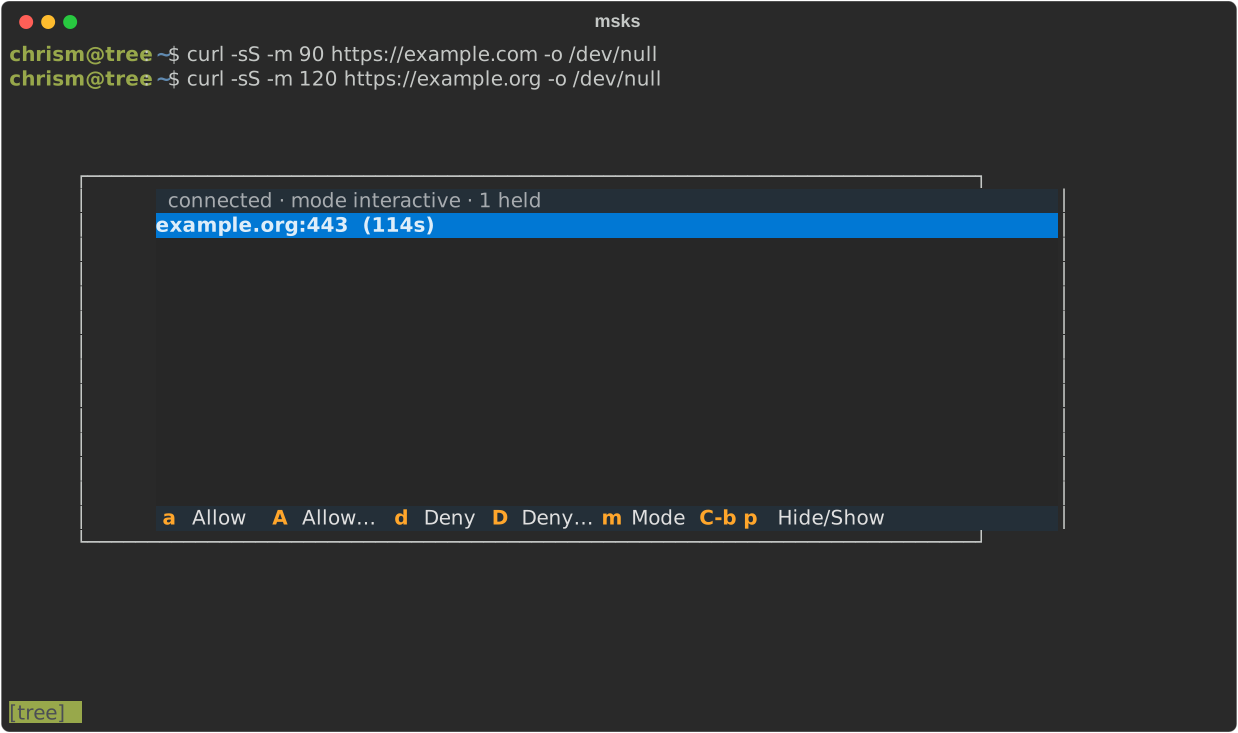
The app lists every hold the workspace carries, destination and time
remaining per row, with the arrow keys moving the selection. a allows
until restart and d denies the selected hold. The uppercase twins A and
D pick a duration for their verdict (Enter picks, Escape cancels). m
switches the workspace's egress mode. The picker offers allow, static,
and interactive with the current mode highlighted (Enter picks, Escape or
q cancels).
Picking static while nothing is effectively allowed asks the
empty-static question first, the same confirmation the consent page asks.
The switch goes through the same endpoint msks egress mode uses. The
status line shows the current mode beside the connection state, and a
completed switch flashes its effect there (in effect now, or takes effect
at next start for a stopped workspace). A switch the daemon refuses states
its reason on the same line. A hold leaves the list the moment the daemon
resolves it (a verdict from another decider window, or the hold's own
timeout). The popup viewer hides itself when the list empties.
A hold arriving with the popup closed raises a popup viewer over the shell
that attaches to the hidden session. The bindings map runs along the popup's
bottom edge: the verdict keys, the mode switch, and the hide/show entry.
q, Esc, or C-b hide the viewer. The decider keeps running, its queue
keeps living, and C-b p brings the popup back. A popup the app raised
returns the same way on the next hold. The session ends with its window, and
the decider registration ends with the server. It works with any terminal
that runs a command: put your terminal and its command flag in
terminal_open_cmd, and msks-term-popup right after it (tmux 3.2 or newer
must be on PATH):
On macOS, an open-opened window resolves commands on a fresh login PATH, and
msks-setup-macos-host links both client commands there. tmux comes
from that PATH the same way. The Linux forms need the same: the window resolves
msks-term-popup on its own PATH, and msks-setup-debian-host and
msks-setup-fedora-host link it beside msks at /usr/local/bin.
The popup viewer keeps its own attach to the hidden session. A hold that arrives while it is open is already in the list. Verdicts posted from it go through the same REST contract as the consent page. A post that cannot complete (the request resolved in another decider window while the verdict was in flight) reports the reason on the popup's status line.
The session's status bar shows the workspace: the launch resolves the
workspace's name and pins it to the bar's left side ([project-x]). The id
stands in whenever the lookup fails (the daemon down, the workspace gone, the
wait run out), and shell stands for a plain shell. The window list after the
label stays empty.
The bar's right side carries the egress mode beside the popup key (#764), as
interactive · C-b p popup. The key hint lands at launch. The decider app
fills the mode in front of it when its first rules frame lands, and updates it
on every change whatever surface decided it. Every workspace carries a mode.
A workspace created without egress reads allow. A window with no workspace
(a plain shell) ships neither half: no decider stands behind it, and C-b p
stays stock tmux's own key.
The hidden consent session runs on the launch's own socket, one small
server per window. The app retires when the window has been gone for a
while, taking the session and the server with it. The window's own hold
flags (konsole --hold, xterm's -hold) keep the window open after
the session ends, as they do for a plain shell window.
The tmux pane keeps 10000 lines of scrollback and takes the mouse wheel. Wheel
up scrolls into the pane's history, and wheel down scrolls back toward the live
output. Reaching the bottom (or pressing q) returns to the plain shell. The
keyboard path covers the same history: Ctrl-b [ (or Ctrl-b PageUp) opens
tmux's copy mode, where the arrow keys and PageUp/PageDown move through
it. Shift-PageUp and Shift-PageDown page through it too, one page per
press, entering copy mode on the way up and returning to the shell at the
bottom.
A plain drag selects text in tmux's buffer, and holding Shift while dragging selects the terminal's native text (most terminals hand Shift drags to their own selection). A consent popup raised while the pane is scrolled still takes its verdict keys: the popup overlays the scrolled pane, and the next keypress answers it.